
How to Transcribe Zoom Meetings: Built-In Options and Better Alternatives
Zoom can transcribe a meeting natively, but only on the cloud path with a setting turned on beforehand, and the free plan gets neither piece of that. Your real options are the built-in cloud route, third-party note takers, or a local assistant that never uploads anything. Here's how each works, and where each one leaves you.
How Zoom's Built-In Transcription Works
The transcript is a feature of cloud recording, so two things must be true before anyone speaks: the meeting gets recorded to the cloud, and the audio transcript toggle is on in your recording settings. Per Zoom's documentation, if either is missing, there's no text afterwards, just a video. It's a thirty-second check before the meeting that decides whether the words exist at all.
Once the call ends and the cloud processing finishes, a VTT file sits in the web portal next to the video and audio. It carries speaker labels and timestamps, so you can see exactly who said what, and it opens in any text editor. VTT reads like subtitles rather than minutes, which matters when you paste it into a document later.
Live captions are the trap worth naming: they cover roughly 46 languages against roughly a dozen for cloud-recording transcripts, they help during the call, and then they're gone, because Zoom saves captions nowhere. If your language is only covered by captions, the transcript doesn't exist for you yet.
The Problems You'll Hit
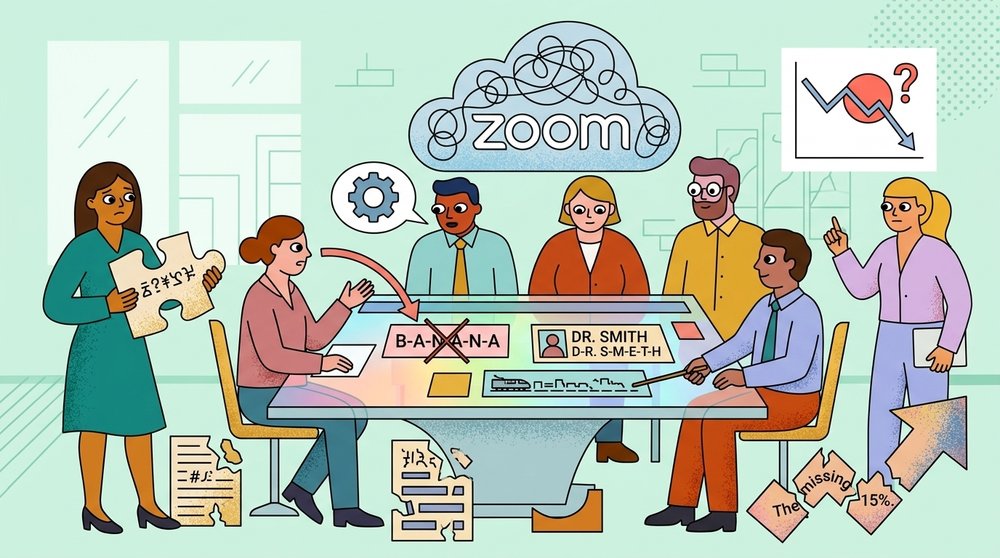
The free plan is the first wall: local recording only, no cloud features, so no transcript, and no AI Companion either. If your meetings run on a free Zoom account, the built-in path is closed before you start, and the workarounds section below is your actual option set.
The second problem is the forgotten toggle. The setting has to be on before the meeting starts, and there's no way to enable it retroactively, which is how plenty of recorded meetings end up video-only. The third is the retention clock: cloud recordings and their transcripts expire on the admin's schedule, so a transcript you didn't download is a transcript on a countdown. Where the files land also decides who can reach them, because cloud recordings live in the recorder's storage and follow those file permissions, so the transcript of your interview may live in a colleague's account rather than yours. And accuracy drops on crosstalk and accents like any speech engine, which real meetings supply in abundance.
The Alternatives That Fill the Gaps
Bot-based note takers join the call as a participant, record and transcribe, and post the transcript to a dashboard when the call ends. They work on free Zoom plans, which makes them the common escape from the paywall, and they handle the file management for you. The costs are social and practical: an extra "user" in the participant list that some clients find odd, tenants that block bots outright, and a single point of failure if the bot fails to join.
Local assistants take the other approach: a macOS app like Shmeetings captures the system audio on your machine and transcribes it there, so nothing is uploaded, nothing is stored on a vendor's servers, and no bot exists for a policy to block. The tradeoff is that your hardware does the work, and the file housekeeping is yours. For teams handling sensitive conversations, that trade usually goes one way.
If you go local for more than meetings, the same pattern extends to the rest of your audio, which is what local AI transcription covers in depth. The honest limit of the local route is that you become the storage layer: no automatic backup, no sharing link, and a laptop that dies takes its transcripts with it. Teams that accept that trade usually build a folder convention in the first week and never think about it again.
Getting a Better Transcript From Any Method
One speaker at a time is the biggest lever, because overlapping voices are where every transcription engine falls apart. Mute discipline is the second: typing, side conversations and dogs all end up as invented words in the transcript, and someone has to clean those out later. A decent microphone beats a laptop mic by a margin you'll notice in the first paragraph of output.
Then convert the transcript while context is fresh. The raw VTT is a record, and the useful artifact is meeting minutes with clear action items drawn from it, written an hour after the call rather than a week later when the "why" behind the decisions is gone.
Choosing the Right Method
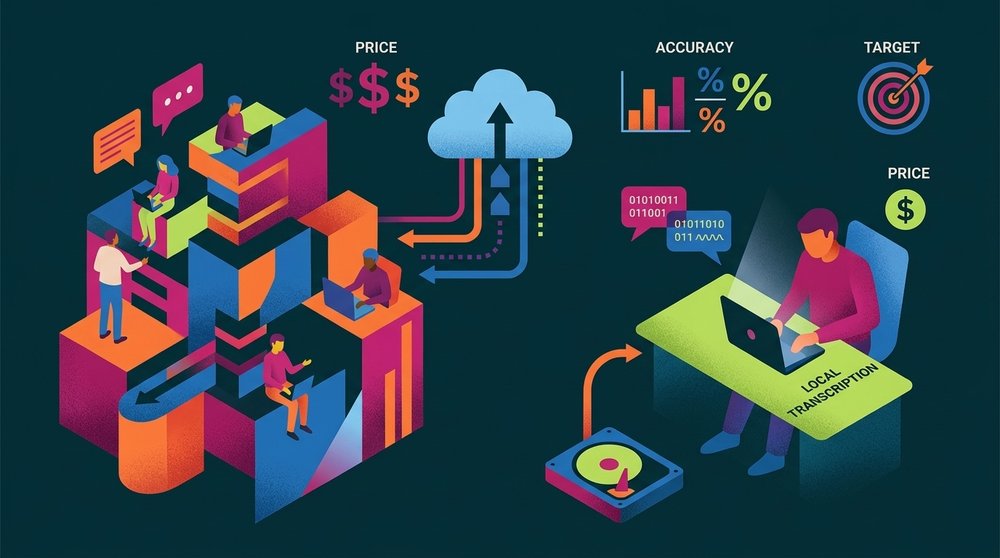
Paid Zoom plan with admin access: the built-in path, with the transcript toggle checked before every meeting. Free plan, public meetings, no privacy constraints: a bot-based note taker. Free plan, or sensitive content, or a strict data policy: the local route, where nothing leaves the machine and nothing expires on someone else's schedule. If you're comparing platforms as well as methods, Google Meet transcribes on its own plan gates, and the same decision logic applies there.
One more filter worth applying before you decide: think about what happens to the transcript six months later, not just during the meeting. The built-in path expires files and stores them per-account, bots keep them on a vendor dashboard, and the local route leaves them in your folders. The method that makes the transcript easiest to find and act on next quarter is usually the right one, because the value of a meeting transcript is almost entirely in the follow-up.
Frequently Asked Questions
Can Zoom transcribe for free?
No. Transcription is a cloud-recording feature, and cloud recording needs a paid plan, so free accounts get local recordings with no text. The free-tier routes are a third-party note taker or a local assistant that captures your system audio.
Where is the transcript after the meeting?
In the Zoom web portal, with the cloud recording, once processing finishes. It downloads as a VTT file alongside the video and audio. If nothing is there, the audio transcript toggle was off or the meeting was recorded locally, and in both cases the text cannot be recovered.
Why is there no transcript even though I recorded?
Two usual answers: the meeting was recorded locally instead of to the cloud, or the recording went to the cloud but the audio transcript setting was off. The transcript only exists when cloud recording and the toggle are both in place before the meeting starts.
Can Zoom transcribe multiple languages?
Live captions cover roughly 46 languages, but captions aren't saved. Cloud-recording transcripts cover roughly a dozen, in one spoken language per meeting, set by whoever started the transcription. Check your language against the cloud-transcript list, not the captions list.
How do I get a Zoom transcript without paying?
Use a tool that doesn't depend on Zoom's cloud: a bot-based note taker that joins the call, or a local assistant that captures system audio on your machine and transcribes it there. Both produce transcripts on a free Zoom plan, and the local route keeps the audio on your side of the wall.