How to Transcribe Interviews Without Uploading Your Audio
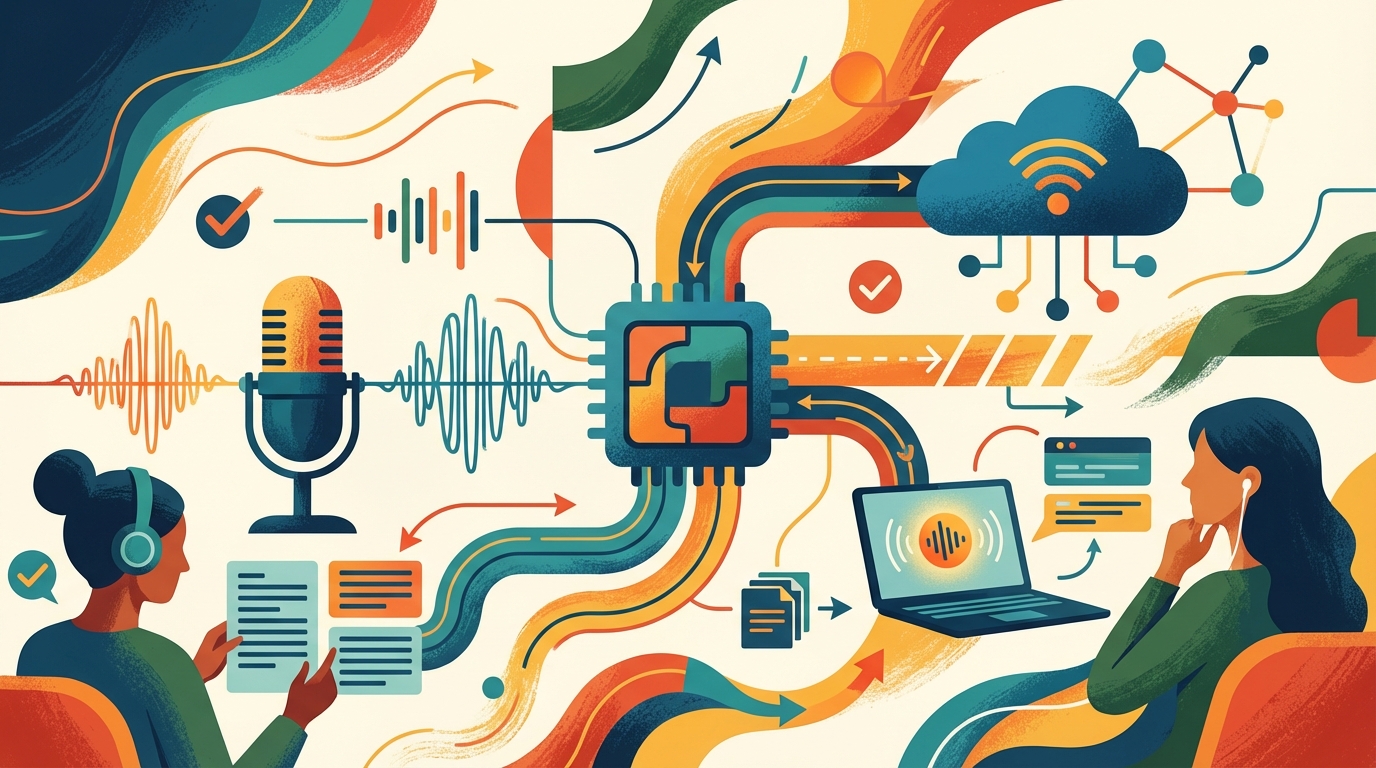
As journalists and other professionals know all too well, the heavy burden of proof rests on the most mundane of tasks, including transcribing interviews. Every journalist, academic researcher, HR professional, all who record interviews, ultimately are left with the same question after tapping "transcribe": where's that audio going?
Most cloud transcription tools process audio over remote servers. That means everything from your source's private comments to a job candidate's salary expectations, perhaps even a whistleblower's identity, are flowing through servers you don't control. Cisco's 2024 Data Privacy Benchmark Study found that 94% of organizations believe their customers would not buy from them if information is not properly protected. Why wouldn't the same standard be applied by your interview subjects?
There's a better way: transcribing locally. Keep your audio on your own machine, run AI models offline, and get the results without compromising your interviewee's privacy.
Why Cloud Transcription Creates Problems for Sensitive Interviews
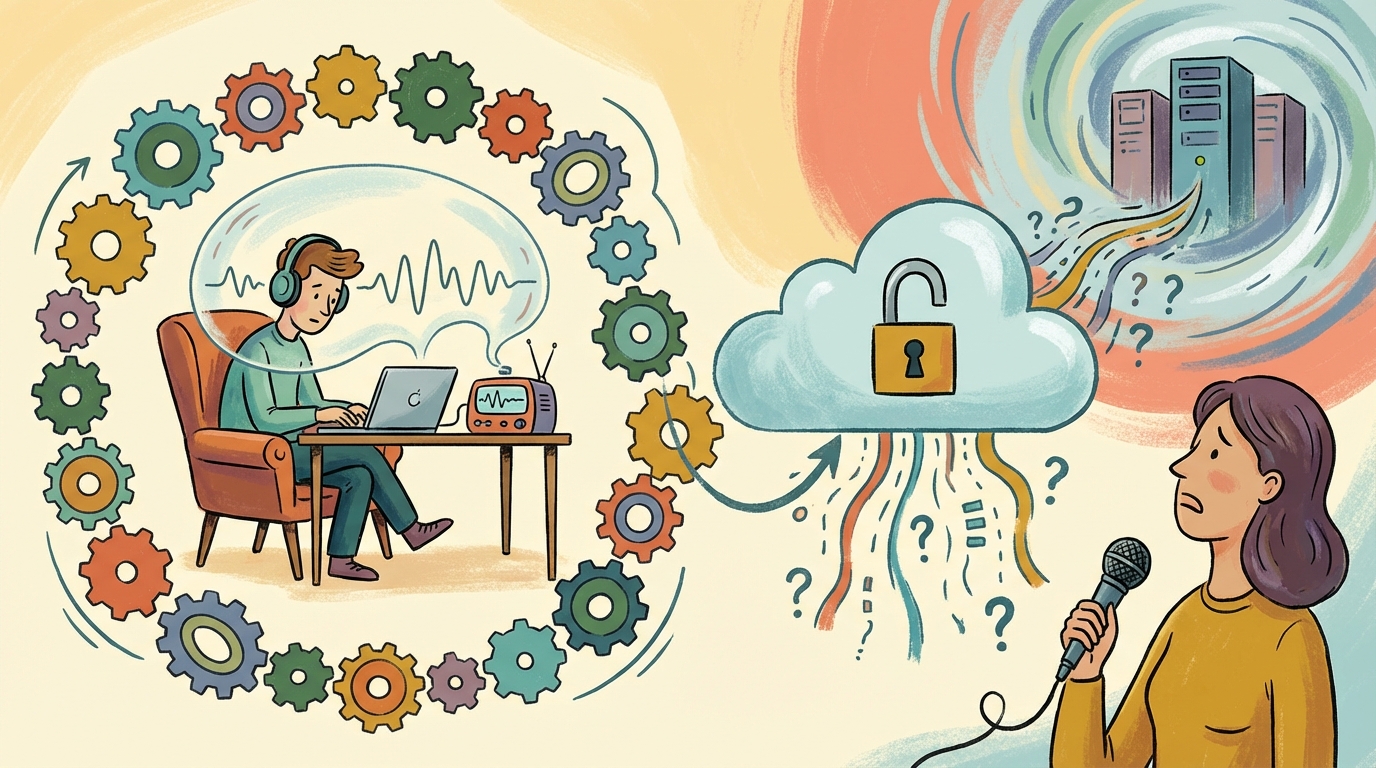
Cloud tools such as Otter.ai and Notta work by uploading your audio file to a remote server, processing it using a remote AI, and then piping that text back to you. This workflow creates more than a few real problems.
Your Audio Lives on Someone Else's Server
Storing your audio recordings on a cloud service means waving goodbye to control over that audio file. The service's terms of service dictate what happens next. Some of them now simply keep audio to build up their own model training. Others retain materials indefinitely in the cloud for "service improvement." If the company suffers a data breach? Your audio could be exposed.
For reporters protecting their sources, it's not a risk they can take. The Reporters Committee for Freedom of the Press has long cautioned against digital tools with a paper trail that can be traced back to sources. Cloud transcription makes such a trail.
Compliance and Legal Risks
Researchers living under IRB (Institutional Review Board) protocols are used to similar restrictions. Many IRB approvals require that the data captured from research participants be stored on encrypted, institutional devices. If you stored audio via a third-party service, you may run afoul of the agreement and jeopardize your entire study.
HR teams, too, beneath the umbrella of GDPR, state privacy laws like CCPA, and other regulations, face similar problems. Interviews with job candidates contain personally identifiable information. If your HR team transcribes those interviews using a third-party service, you're creating yet another data processor your privacy assessment has to account for, with all the compliance obligations that come with it.
The Cost Adds Up
On top of privacy concerns, cloud transcription services require you to pay them a fee, usually on a subscription model. Otter.ai's business plan costs $20 per user per month. Notta charges $14.99 monthly. For a research team doing dozens of interviews, the cumulative cost could get steep, and who could blame them for looking elsewhere. A 2025 Gartner report found that SaaS subscription fatigue is a factor with 67% of organizations, with transcription being among the most often mentioned.
How Local Interview Transcription Works
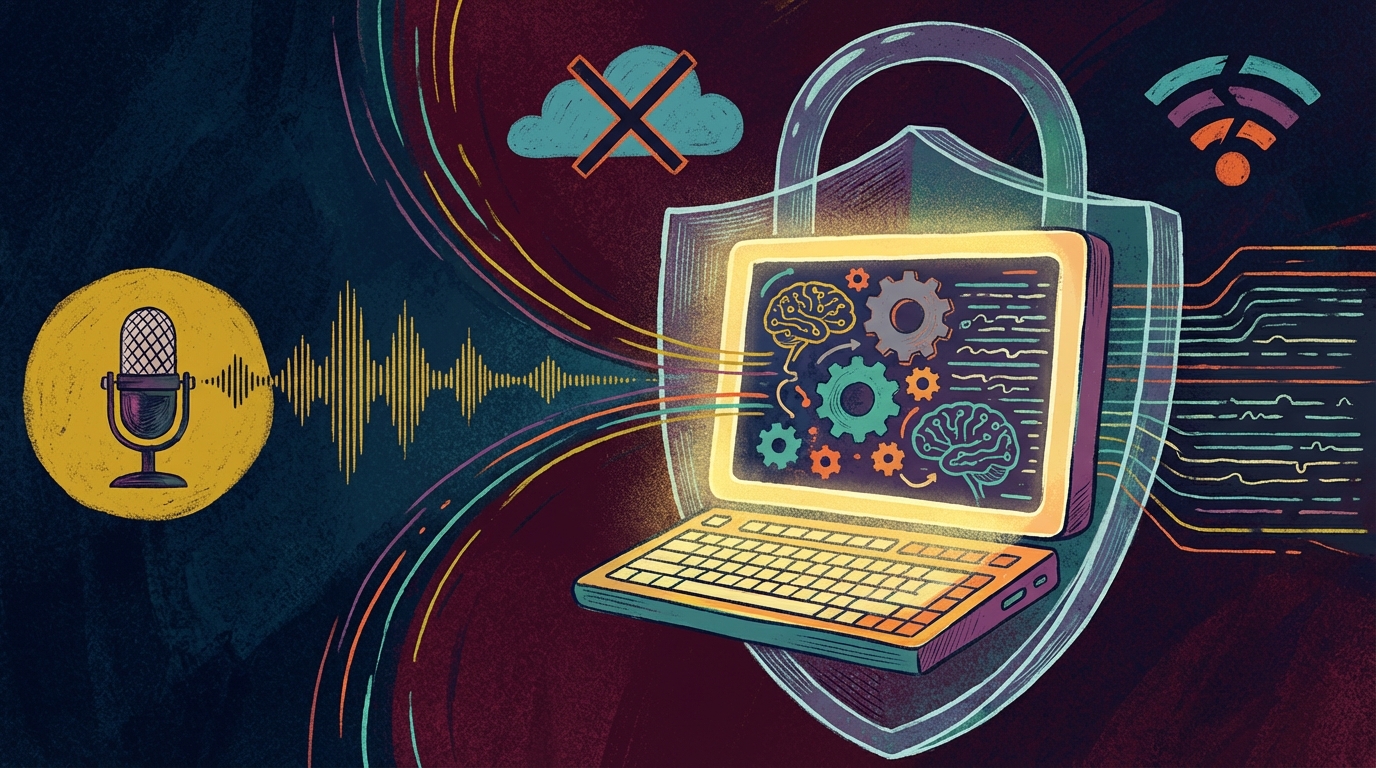
Local transcription runs AI speech recognition right on your computer. Nothing ever leaves your machine. No internet connection required after the initial app setup. Everything happens on your hardware.
The Technology Behind It
Modern local transcription uses OpenAI's Whisper model, an open-source speech recognition system that's competitive with commercial cloud services in terms of accuracy. It runs on most modern laptops and desktops with zero special hardware. It recognizes speech in 90+ languages, plus various accents, noise and multiple speakers fairly well.
Once downloaded (about 1.5 GB for the large model) it runs entirely offline. No audio ever even touches someone else's server. Expect transcription that'll run in either real time or close to it, depending on how fast your computer can think.
What You'll Need
Nothing as extreme as a top-of-the-line gaming PC. Just something like a modern laptop with 8 GB of RAM and you'll be set to transcribe interviews. You'll get solid performance out of Apple Silicon Macs (M1 and later) as they've got neural engines for speeding up AI processing. Windows PCs with 16 GB of RAM or more will also handle it well.
Setting Up a Local Transcription Workflow
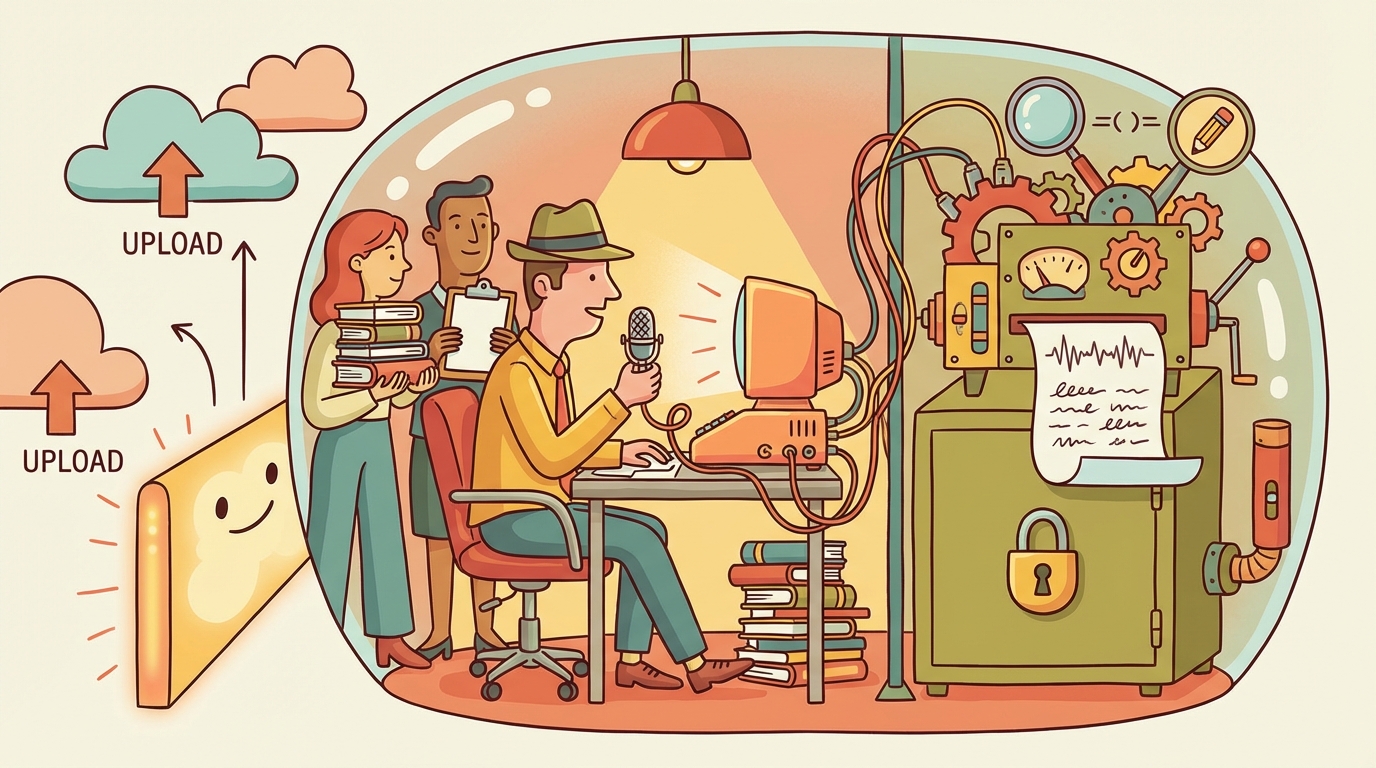
Here's a practical workflow to kick off for transcribing interviews locally. It should work well for journalists rushing to meet a deadline, researchers wrangling lots of different interview sessions, and HR teams processing candidate interviews.
Step 1: Record Your Interview
Record the conversation in whatever manner you already use. It could be a smartphone voice memo app, an actual dedicated voice recorder or even just your laptop's built-in microphone. Save the file as an MP3, WAV or M4A file. Most recording software defaults to one of those.
For remote Zoom or Google Meet interviews, Shmeetings can capture your system audio and transcribe the conversation on your machine without sending audio out anywhere, giving you a transcript on the fly, not days later.
Step 2: Pick Your Local Transcription Tool
There are a number of tools that run Whisper locally. Shmeetings is built for transcribing meetings and interviews, with privacy front and center. It can transcribe live system audio in real time during the call, or process previously recorded audio files. Just drag and drop an MP3, WAV, or M4A. It abstracts the technical stuff for you, exposing a clean interface for reviewing and editing your transcripts. You can read more about how it compares to cloud services in our Shmeetings vs Otter.ai comparison.
Other options include running Whisper in terminal directly (for the technically minded), and MacWhisper on macOS.
Step 3: Transcribe and Review
Import your audio file into your choice of tool and start the transcription. With Shmeetings, you just drag and drop the file and your transcript will appear as the audio is processed. The whole thing happens on your computer.
Review your transcript for accuracy. No tool is perfect. Whisper will vary with clarity of audio, its error rate is roughly 5% on good audio, in the same range as a human working as a professional transcriptionist. Names and unusual terms are where errors crop up most commonly, plus sections with noise. Review those first.
Step 4: Organize and Export
Export your transcript as a text file, Word doc, or whatever format works for you. Label it with the interview date, who you interviewed, and what project you were working on. Save it according to your org's data retention policy.
For researchers, here's where you start coding and analysis. The transcript lives on your local filesystem, totally in your control, just where your IRB protocol says it will be.
Local vs Cloud Transcription: An Honest Comparison
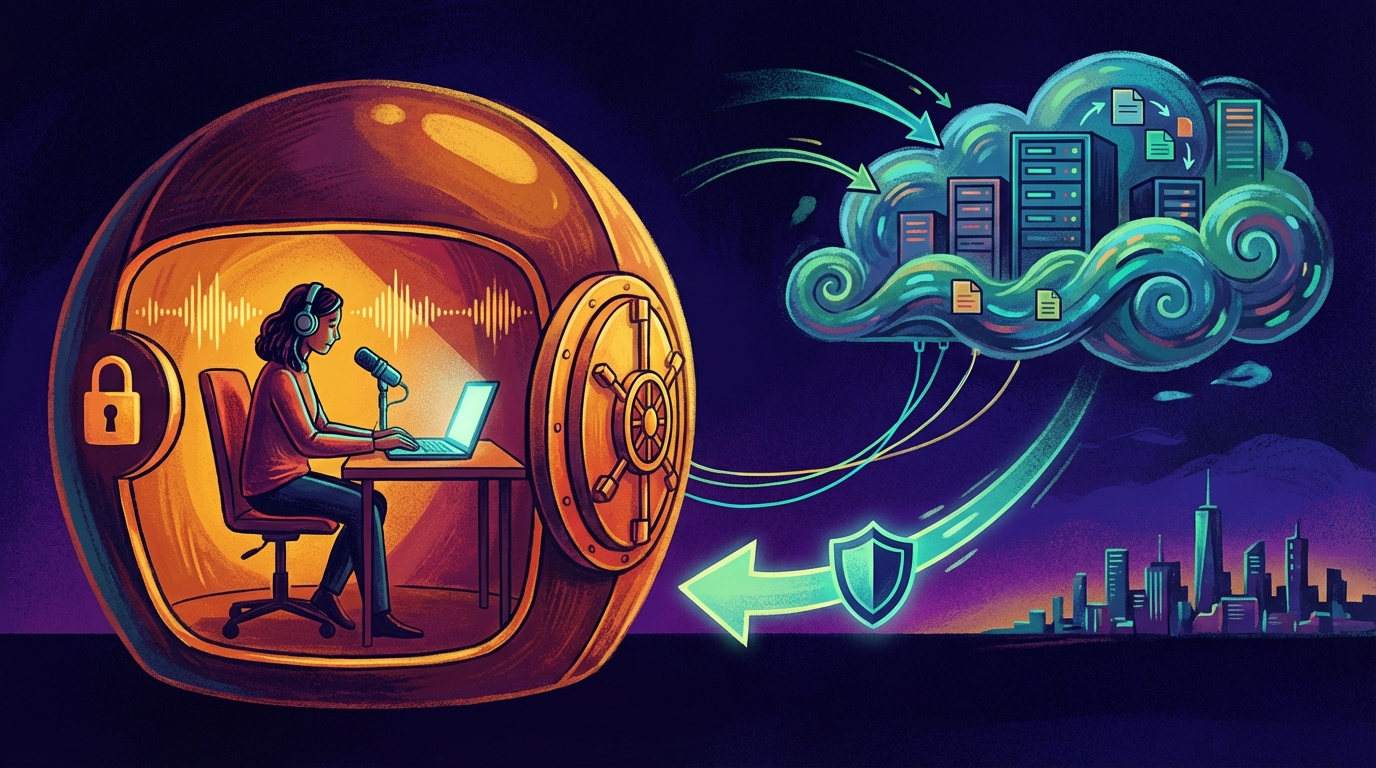
Local transcription isn't ideal for every situation. Here's a fair comparison to help you make a decision.
Where Local Wins
Privacy: Your audio never leaves your device. Full stop. This is the biggest benefit for anyone handling sensitive interview material.
Cost: Other than doing the setup once, there's no charge per minute for local transcription. No subscriptions, no per-seat fees. Process as many hours of audio as your heart desires.
Compliance: Easier to meet data safety requirements from IRBs, legal departments, and privacy regulations when everything sits inside your own controlled environment.
Offline access: Need to transcribe on a plane, or a remote field site, or just anywhere you don't have reliable internet access? Local transcription just works. For journalists and researchers in the field especially, this matters.
Where Cloud Has an Edge
Collaboration: You can accomplish this with local transcription tools with a bit of work, but the simplest way to annotate a transcript with multiple contributors is with an online tool.
Speaker identification: Some cloud tools have more sensitive speaker diarization (the process of labeling who said what). Local tools are catching up but cloud options still have an advantage, especially for tricky multi-speaker recordings.
Zero setup: Cloud tools just live in your browser and away you go. Local tools require a one-time download and installation.
Speaker Diarization: Local vs Cloud Accuracy
Speaker diarization, the task of figuring out "who said what," is one area where local and cloud tools still differ meaningfully.
| Scenario | Cloud (Otter.ai, Rev) | Local (pyannote.audio + Whisper) |
|---|---|---|
| 2 speakers, clean audio | 90 – 95% accuracy | 85 – 90% accuracy |
| 3+ speakers or crosstalk | ~88 – 90% (DER 10 – 12%) | ~80% or lower (DER 20%+) |
| Why | Large proprietary datasets, server-side GPUs | Smaller models running on local hardware |
Cloud services benefit from large proprietary training datasets and server-side GPU clusters that can run heavier models. Local diarization tools have made significant progress, with Whisper-based pipelines paired with pyannote.audio now achieving diarization error rates (DER) around 10-15% on standard benchmarks. That gap narrows further with good audio quality and clearly separated speakers.
Where the gap widens is in more challenging scenarios. For a standard one-on-one interview recorded with decent equipment, though, local diarization is more than adequate, and it's improving with every model release.
The practical takeaway: if accurate speaker labels are critical to your workflow and you regularly deal with noisy multi-speaker recordings, cloud diarization still has an edge. For the vast majority of interview scenarios, two speakers in a reasonably quiet environment, local tools deliver accuracy that's close enough that the privacy and cost benefits outweigh the difference.
Best Practices for Interview Transcription
These basic best practices will help you regardless of whether you choose local or cloud.
Before the Interview
Test your recording setup. Just run a 30-second test recording then play it back. Are there any echoes or background noise? Is the volume level too low or high? The most common reason for poor transcriptions, regardless of the software, is inadequate audio quality.
If it's a remote interview, try to be on a wired internet connection if it's available, and ask your subject to do the same. If the audio is broken up due to a bad internet connection, the transcript will have gaps.
During the Interview
You know not to talk over your subject when asking a question. But it seems so obvious we mention it here. Overlapping speech is the hardest challenge for any transcription system. Just pause slightly between your questions and their answers.
For an important name or specialized term, jot it down in your notes in your own shorthand. Proper nouns in general are where most transcription hits the wall.
After the Interview
Try to review your transcript within a day of the interview, while the conversation is still fresh. Correct it while you still have it in your head. That'll be a lot speedier than trying to make sense of a stream of text some weeks down the line.
Different professions favor local transcription for different reasons. Journalists and investigative reporters need to protect their sources as a professional obligation. Local transcription wipes out one more digital breadcrumb trail that can unmask your source. If you process your audio locally, there's no third-party target for subpoenas of your interview recordings.
Academic researchers find IRB compliance much more straightforward if their data never leaves devices that are under the control of their institution. They can truthfully state in their consent forms that no participant data will be sent to a third-party processor. Many universities now specifically recommend local processing tools for use with sensitive research data.
HR and recruiting teams handle potentially sensitive personal information, including candidate salary expectations, health disclosures, and opinions about their current or past employers. Transcribing locally reduces your compliance burden under GDPR and similar regulations. Your legal department will appreciate the same. Attorney-client privilege extends to interview recordings. The moment you upload those conversations to a cloud transcription service, you're introducing a third party into the privilege chain, which could compromise that privilege.
Frequently Asked Questions
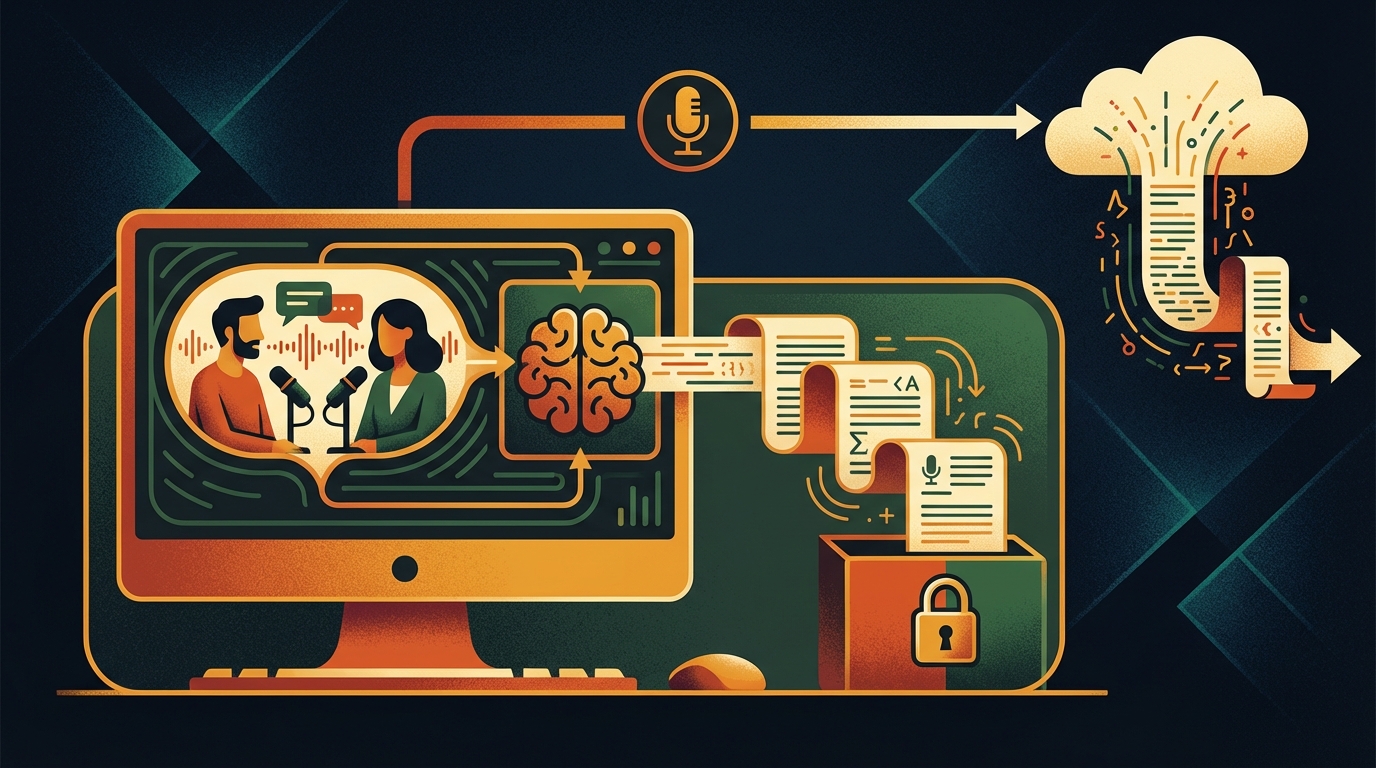
How accurate is local transcription compared to cloud services?
The same AI is used for the local models and for the models on the major cloud services. Local transcription is just as accurate as cloud, typically around 95% on fairly clean audio, sometimes better. The difference is just where the processing happens.
How long does it take to transcribe an interview locally?
With Shmeetings, you can transcribe live as the conversation happens, or drop in a recorded audio file and process it after. On a modern Mac with Apple Silicon or a good PC, a one-hour interview processes in under a couple of minutes.
Do I need internet access for local transcription?
No. Download the model once and you don't have to go online again. Use it on your way to fieldwork, on the plane, wherever you need it.
Can local transcription handle multiple speakers?
Yes, local transcription tools can handle recordings with multiple speakers. Getting specific labels on who said what is an area where the cloud services still have a bit of an edge, but local tools are getting better at it.
What audio formats work with local transcription?
The usual formats: MP3, WAV, and M4A. Typically you don't need to convert anything. Just drop the file in and start transcribing.
Is Whisper really free?
Yes. OpenAI released Whisper as open-source software. You can use it without paying any license fees. Tools like Shmeetings package Whisper in an easy-to-use app so you don't need to be technical to run it.