How to Use Shmeetings

Everything you need to know to get the most out of your local AI meeting assistant

Installation

Getting Started on a Mac

  1. 1. Open the downloaded .dmg file and drag Shmeetings to your Applications folder.
  2. 2. Launch Shmeetings and begin the installation.
  3. 3. The app will automatically download the Llama 3.2 model for local AI summaries.
  4. 5. Shmeetings will automatically open and will not require additional setup.
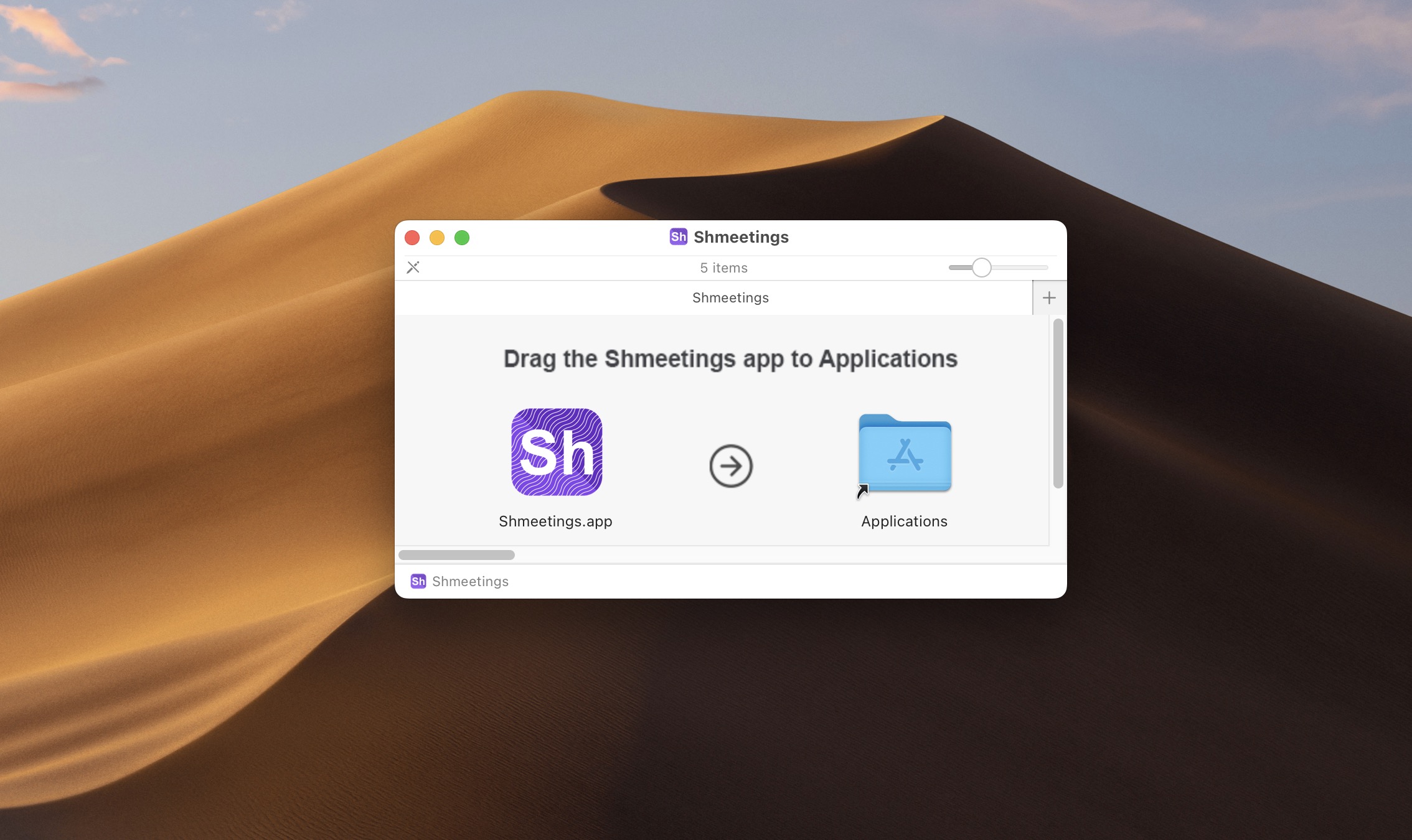
Drag Shmeetings to Applications folder on Mac
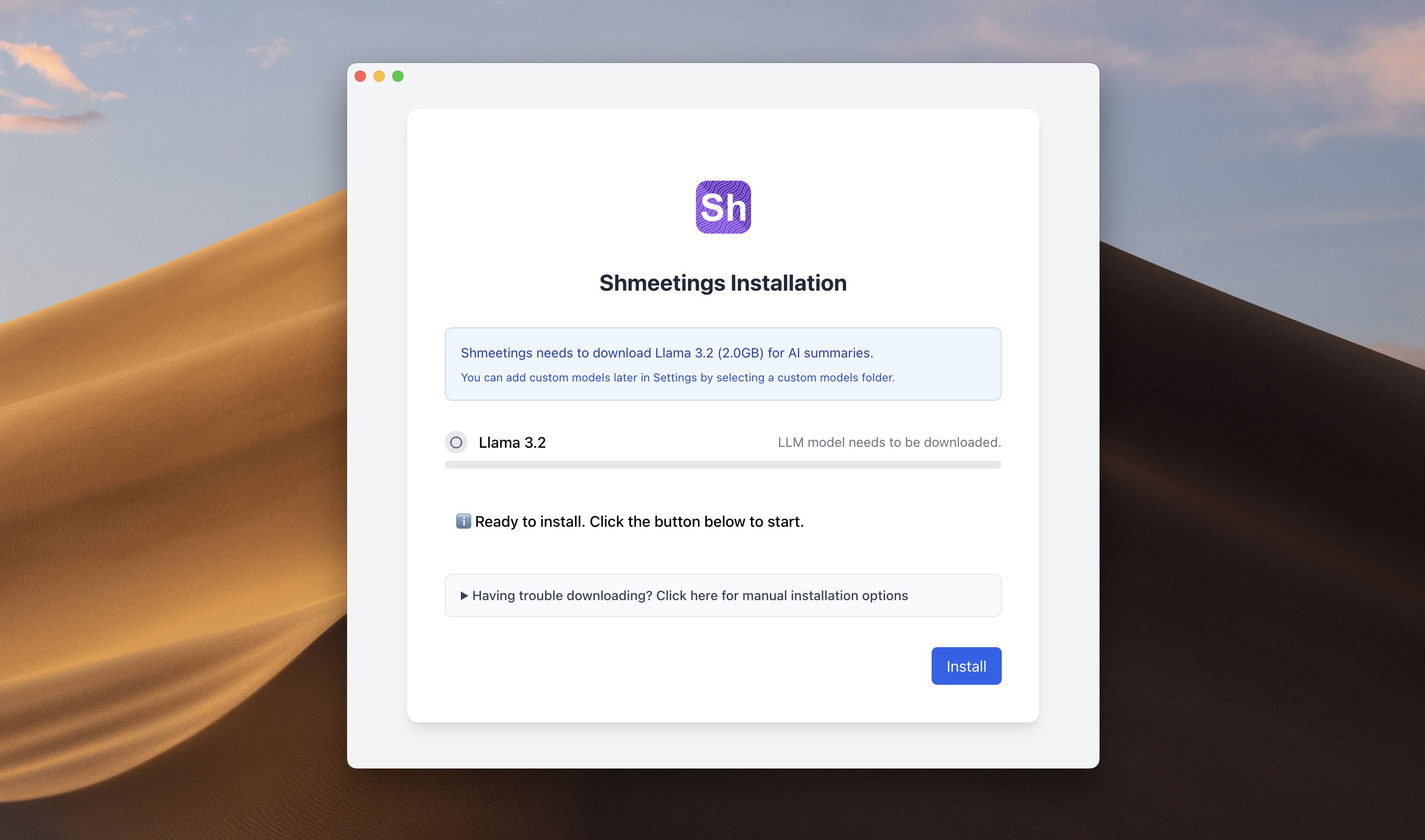
Installing Llama on Mac

The first time you open Shmeetings, it may take a few seconds to start up.
Then begin by clicking 'Install'.
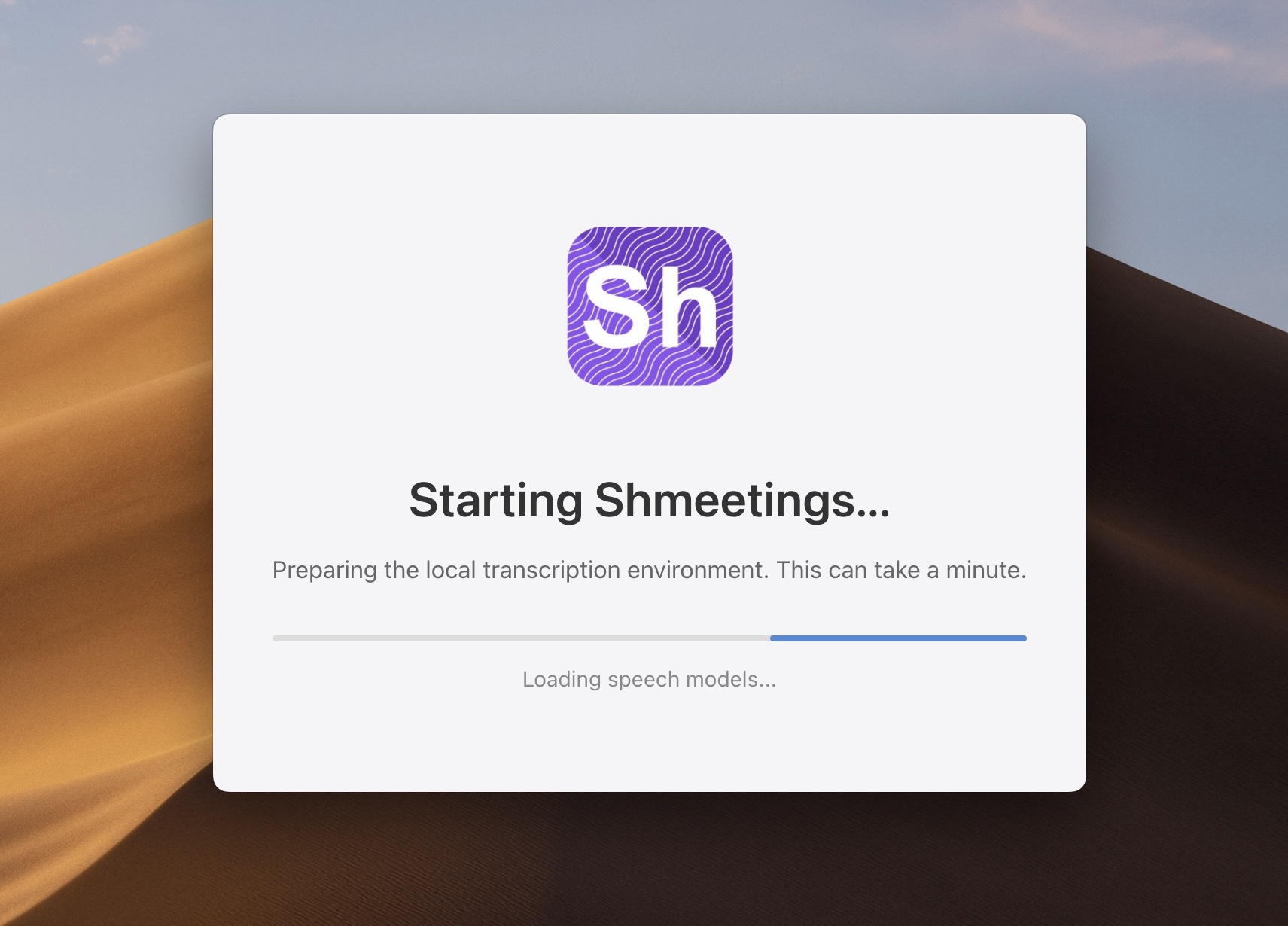
Shmeetings startup screen after installation on Mac

Once Llama is downloaded, Shmeetings will automatically open.

Required System Permissions

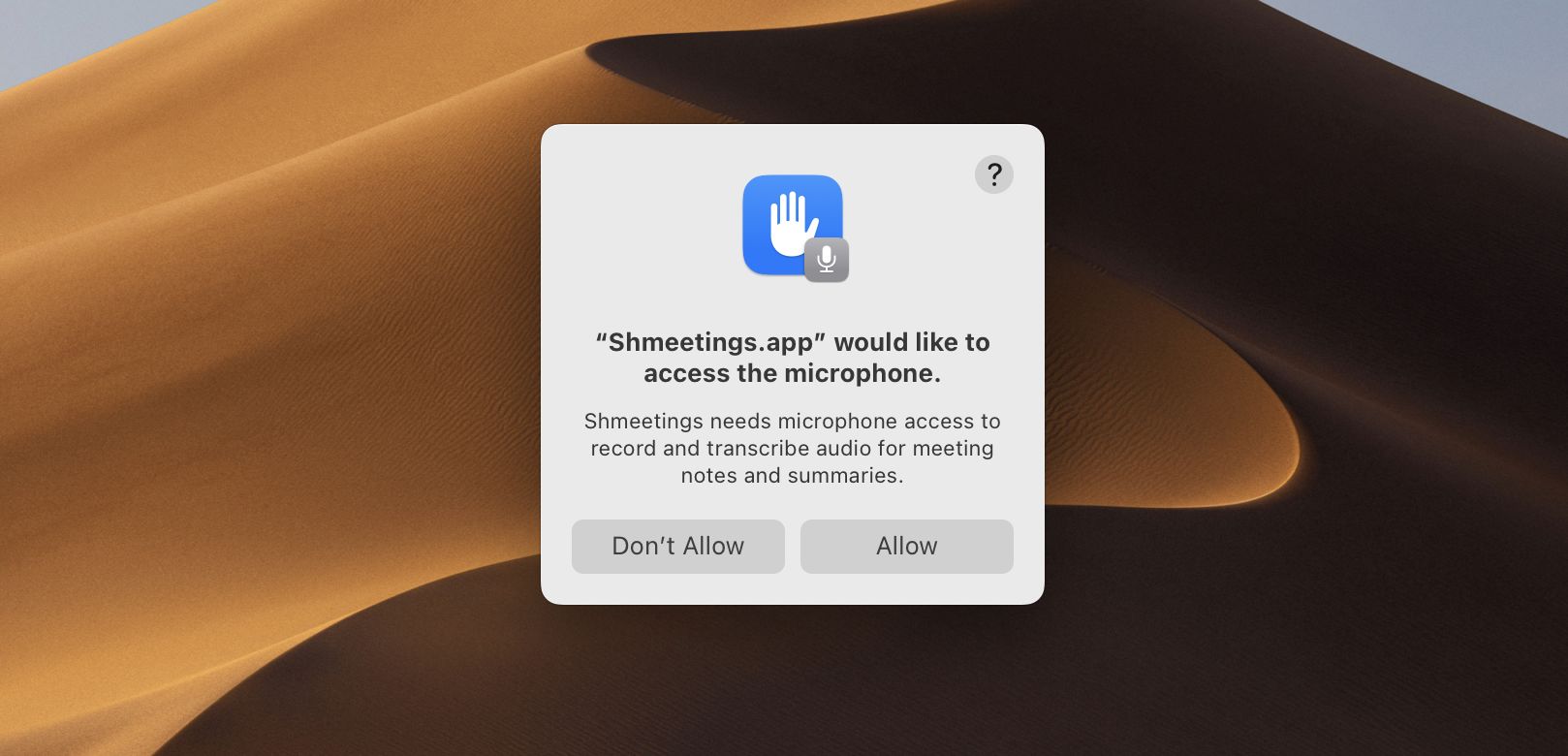
Microphone Access

When you first open up Shmeetings, you will be asked to allow Shmeetings to access your microphone.

Allow microphone access permission setting

System Audio Recording

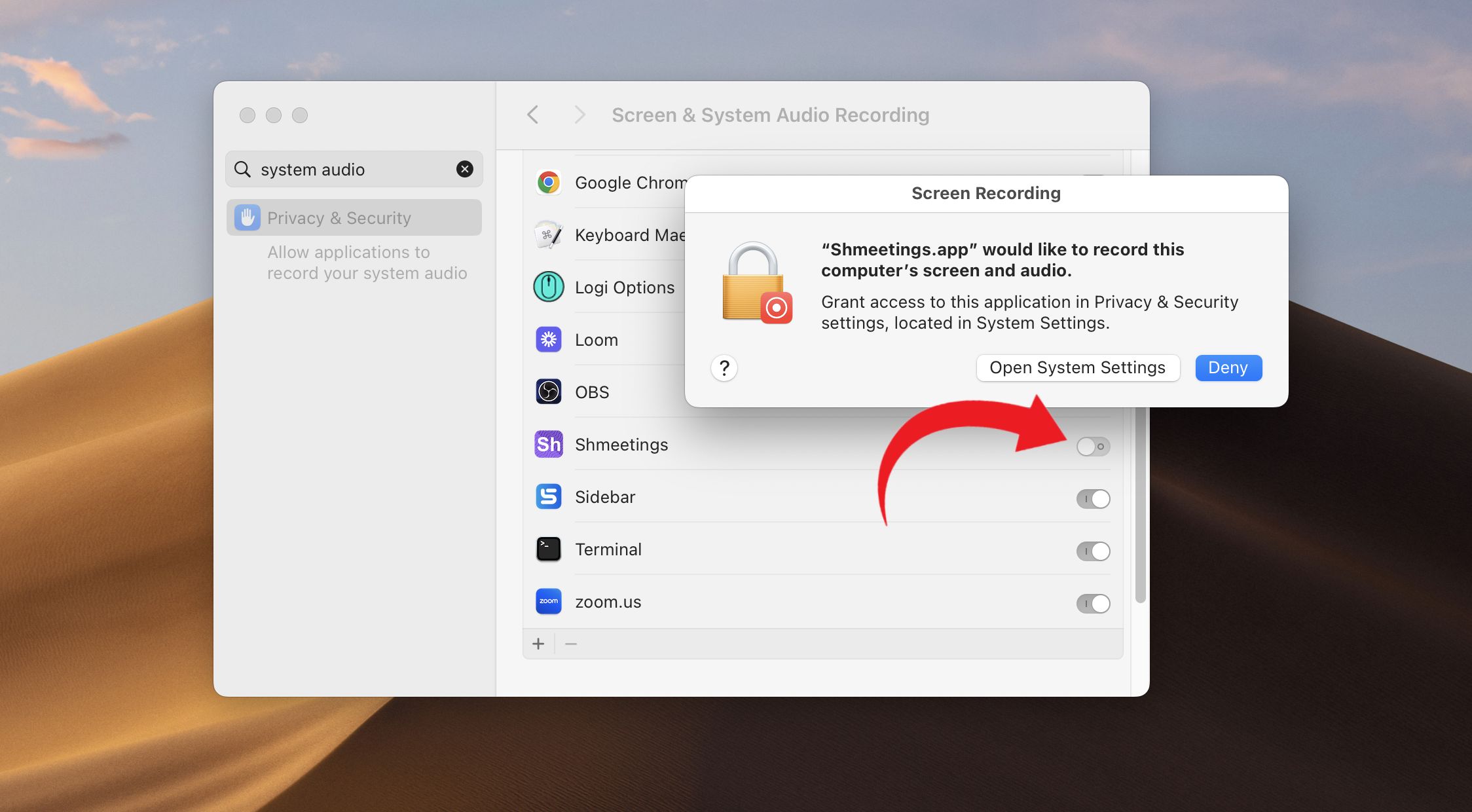
To use your system audio for transcription, you need to give Mac permission to record the computer's screen and audio.

Shmeetings only records audio, but this permission is bundled under 'Screen & System Audio Recording.'

  • In Shmeetings Audio Settings, when you enable System Audio or Meeting Mode, you will get a popup.
  • Click 'Open System Settings', then toggle Shmeetings on.
  • You will be asked to 'Quit & Reopen' Shmeetings.
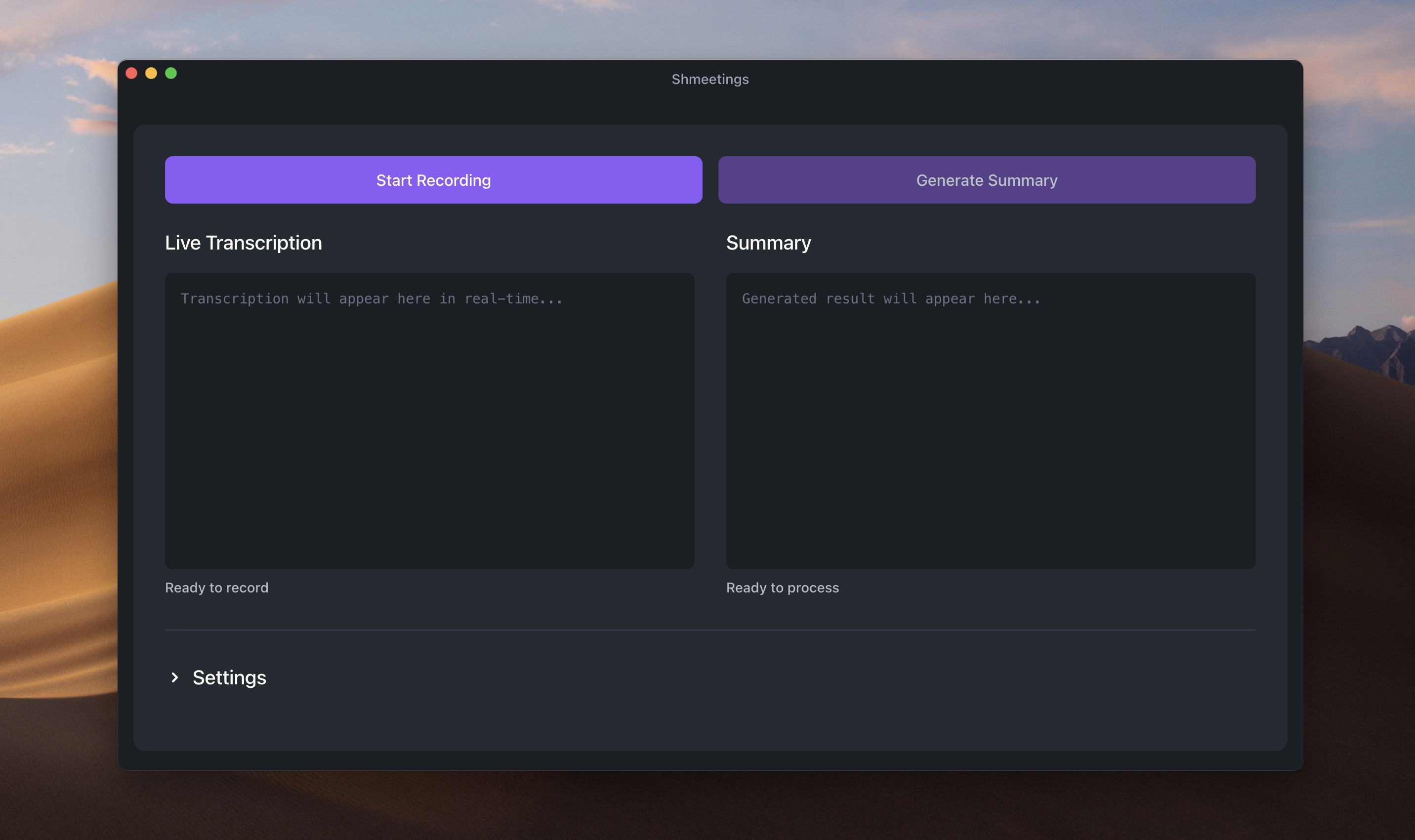
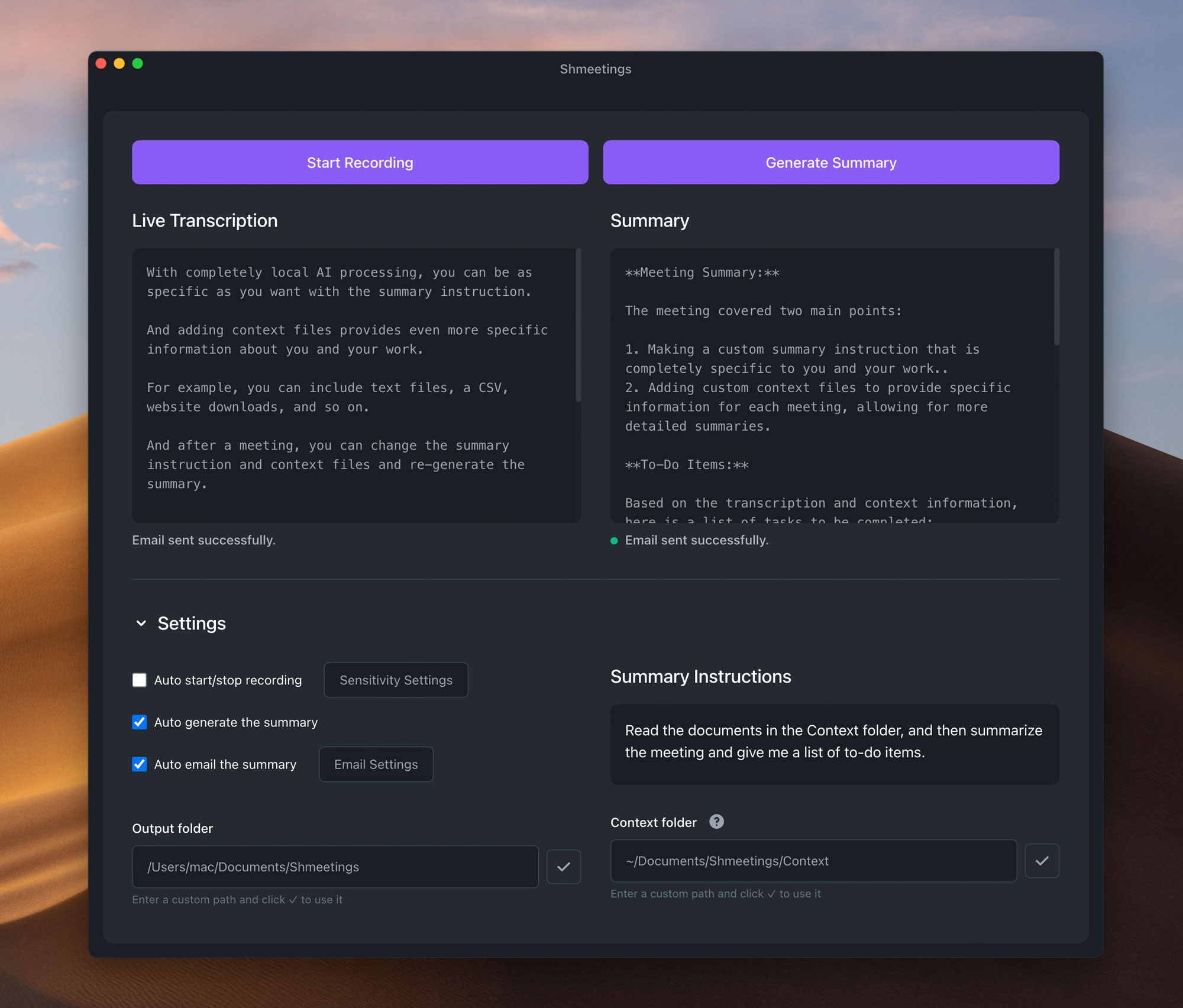
Local private AI meeting assistant summary generation

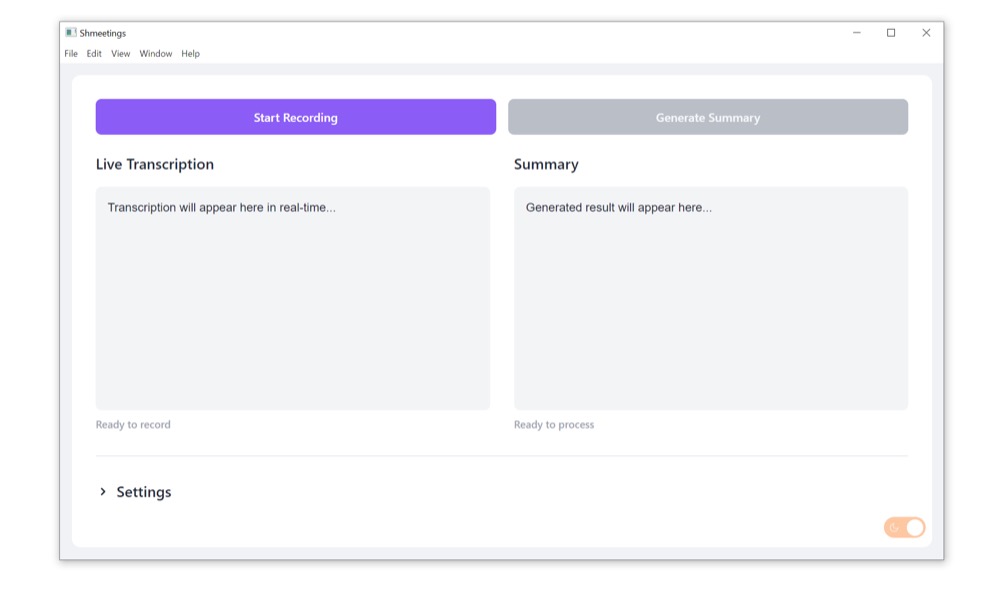
Start and Stop Recording, and Generate Summary

Start and Stop Recording

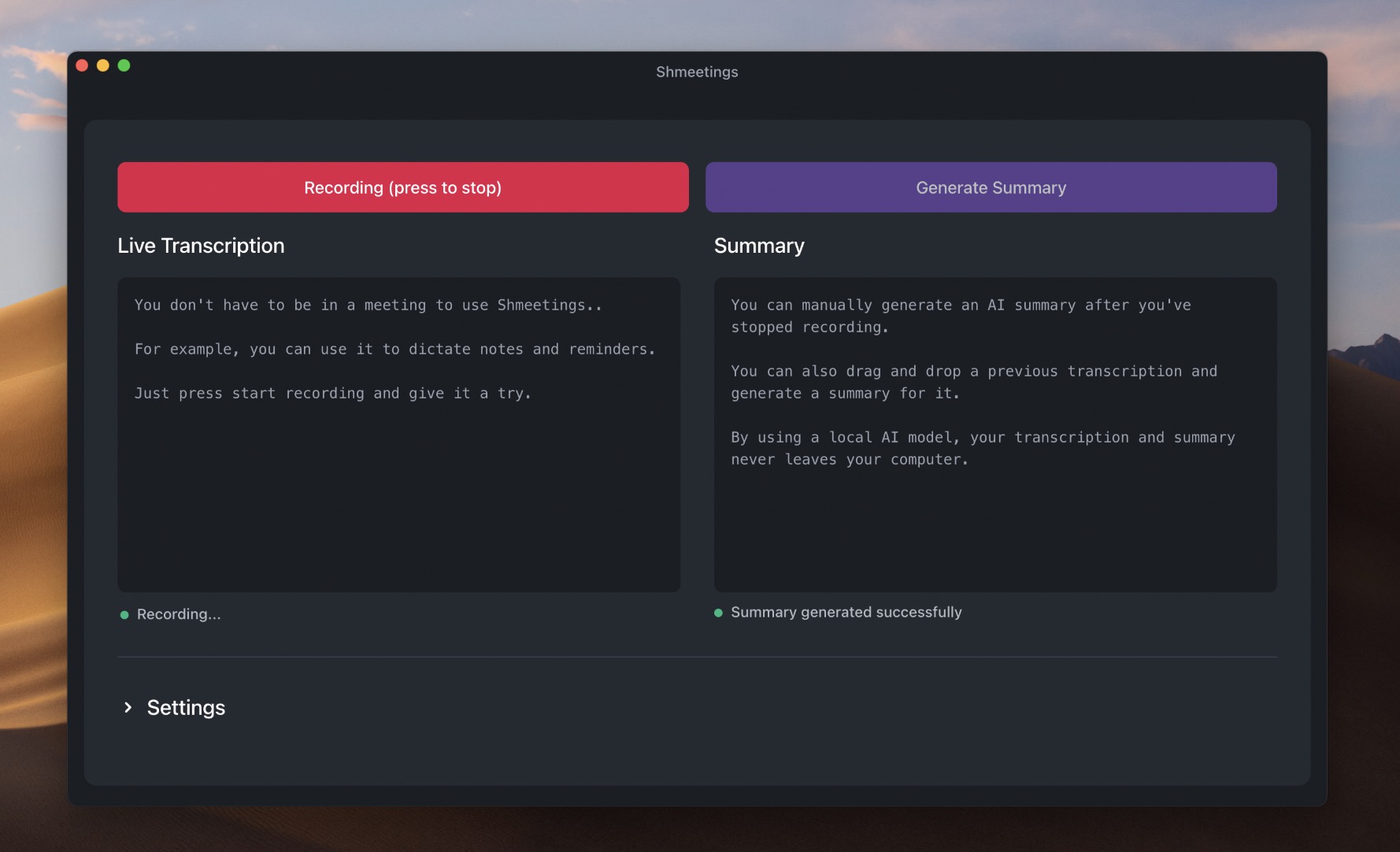
You can start and stop recording by clicking the 'Start Recording' button.

  • Shmeetings uses OpenAI's Whisper technology to transcribe anything it hears into text.
  • The transcription will be saved to a .txt file in your /Documents/Shmeetings folder.
  • No audio recording is saved to your computer.
Start and stop recording with live transcription view

Generate Summary

After you stop recording, you can then click 'Generate Summary' to create an AI summary of the meeting.

  • Shmeetings uses Meta's Llama AI 3.2 model to generate a custom summary of the meeting.
  • You can customize the summary by editing the prompt and context files in the expanded Settings area.
  • You can re-generate the summary at any time there is a completed transcription.
  • The summary will be saved to a .txt file in your /Documents/Shmeetings folder.
Local private AI meeting assistant summary generation

Generate Meeting Questions

Don't Know What To Say? Here's Some Suggestions

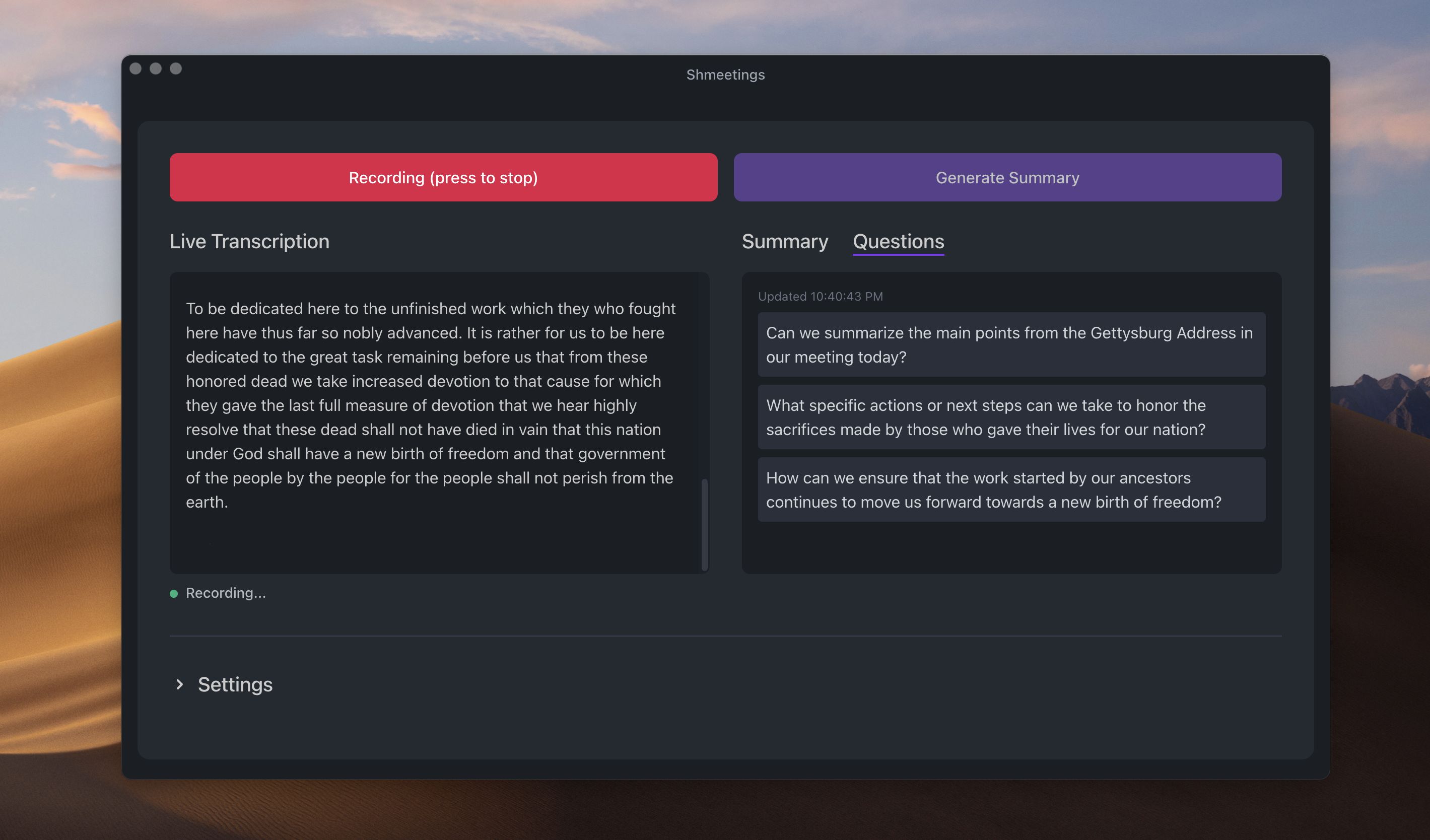
Shmeetings can give you some suggested questions to ask in your meeting, based on the conversation.

  1. 1. Enable "Generate meeting questions" in Settings by expanding the Settings area.
  2. 2. Select 10, 15, or 30 seconds for each round of questions.
  3. 3. There is now a clickable 'Questions' tab next to Summary.
  4. 4. Once a meeting starts, questions will appear here.
Generate suggested questions during the meeting

Auto Start/Stop Recording

Never Worry about Starting or Stopping a Recording

Auto Start/Stop listens for audio activity and automatically begins recording when it detects conversation. It stops when the room goes quiet.

After you customize your microphone sensitivity and delay time, you can set it and forget it.

  1. 1. Enable "Auto start/stop recording" in Settings by expanding the Settings area.
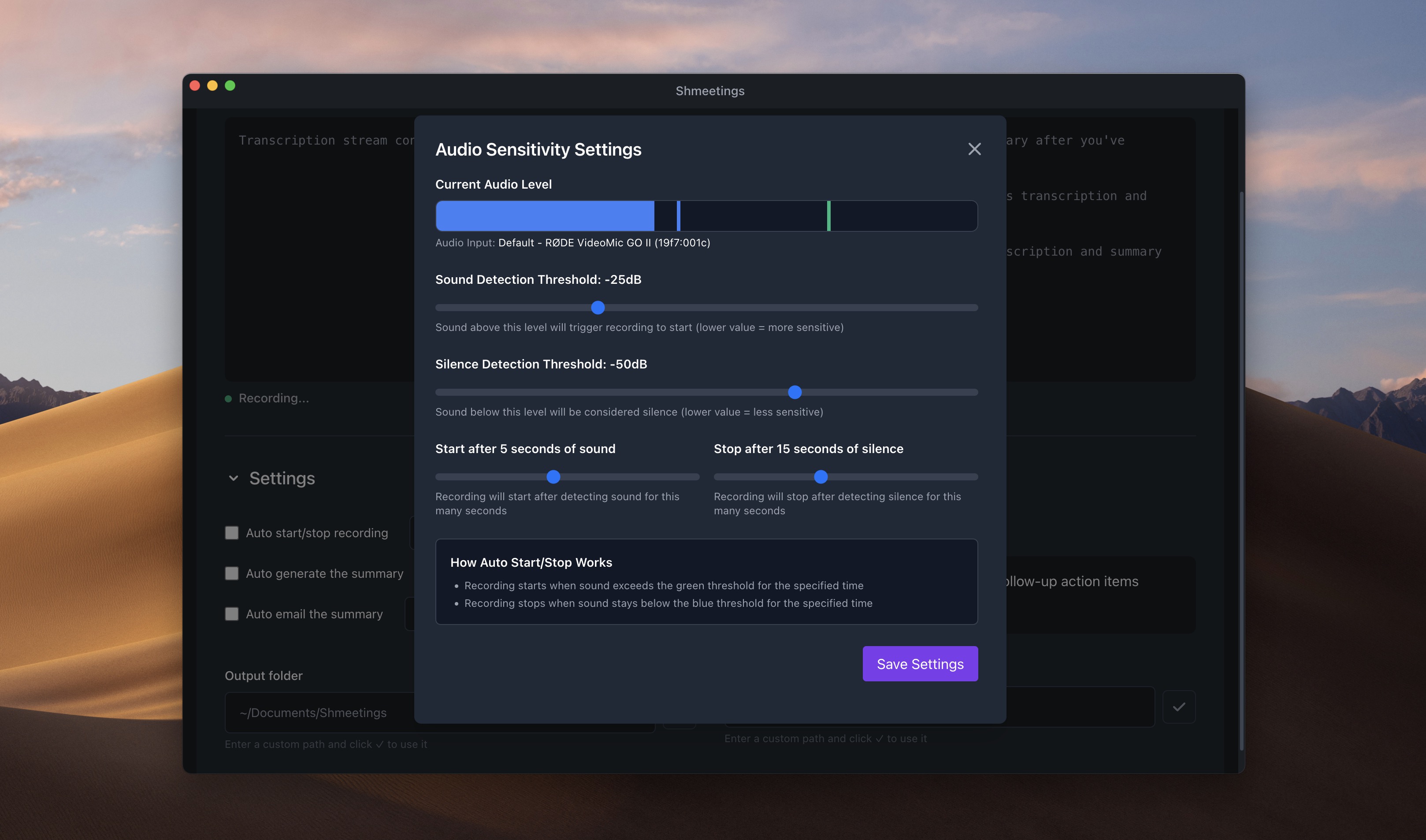
  2. 2. Select 'Sensitivity Settings' to bring up the Audio Sensitivity window.
  3. 3. Drag the sliders to adjust the sound and silence detection threshold and start/stop delay.

Adjustment Tips

To set your start sensitivity, start speaking at a normal volume and drag the Sound Detection slider until the threshold is just below the current audio level.

To set your stop sensitivity, remain quiet and drag the Silence Detection slider until the threshold is just above the current audio level.

You may need to adjust your microphone input level in your system settings.

Auto start stop recording sensitivity settings

Auto Generate Summary

Custom prompt and context files settings

Automatic AI Summaries after Meetings

When your meeting ends, Shmeetings can automatically generate the AI summary.

To enable this feature, turn on 'Auto generate the summary' in the expanded Settings area.

With Auto Start/Stop and Auto Summarize, you don't need to manually press any buttons for Shmeetings to work for you.

Auto Email

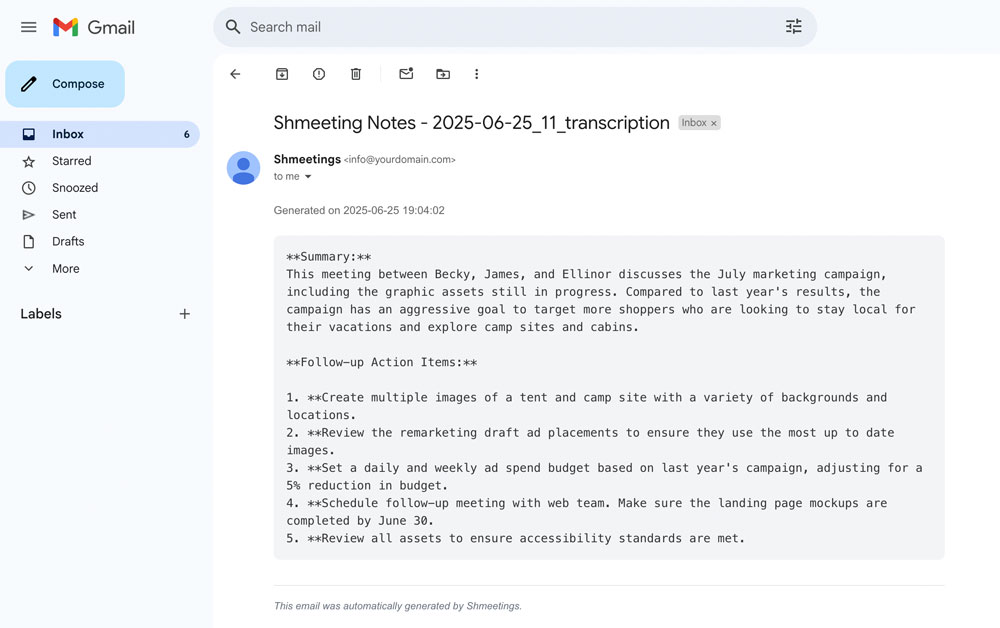
Email Yourself Your Meeting Notes

Automatically send transcripts and summaries to your email after each meeting.

To enable this feature, turn on 'Auto email the summary' in the expanded Settings area.

With Auto Start/Stop, Auto Summarize, and Auto Email, Shmeetings becomes a completely hands-off meeting assistant.

Note: This feature sends data through your email server, so it's not 100% offline. But it's your own email settings, so no data is sent to Shmeetings.

Auto email meeting summaries feature
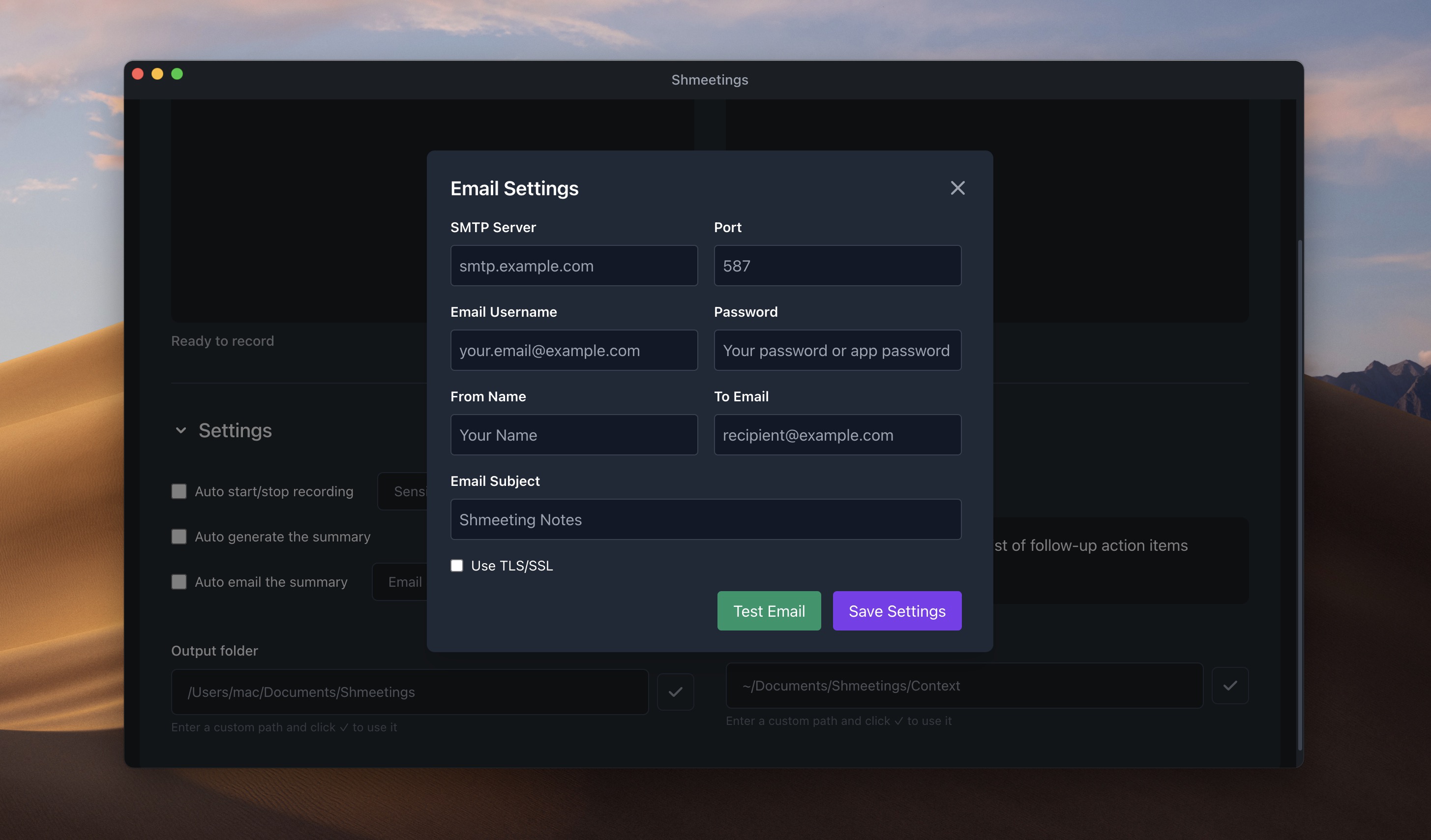
Auto email SMTP server configuration settings

Email Settings

Configure Your Email Server

Required Settings:

  • SMTP server address
  • Port number (usually 587 or 465)
  • Username and password
  • Encryption type (TLS/SSL)

Common Providers:

  • Outlook: smtp-mail.outlook.com:587
  • Yahoo: smtp.mail.yahoo.com:587
  • Custom business email servers
  • To use Gmail, you need to create an App Password in your Google account settings. More info here.

Summary Instructions

Customize Your AI Summary

In the Settings area, write a custom prompt to get AI meeting summaries tailored to your specific needs and work style.

Be as specific as you want, since Shmeetings uses only local AI processing on your computer.

Tips for Good Prompts:

  • • Include your role and company context
  • • Specify the format you want
  • • Name team members for better organization
  • • Ask for specific sections (action items, decisions, etc.)

Example Prompts:

"I'm a product manager at a SaaS company. Create a summary with sections for: Feature Requests, Bug Reports, Action Items (organized by team), and Key Decisions."

"I run a marketing agency. Focus on client deliverables, deadlines, budget discussions, and next steps. Organize by client name."

Add Context Files

Add context files to enhance AI summaries

Enhance Your Summaries

Add relevant files to give the AI meeting summary more context about your work, projects, and team.

In the Settings area, you can modify the Context folder where your context files are stored. The default is Documents/Shmeetings/Context. After changing the folder, press the checkmark to save the changes.

Useful Context Files:

  • Team member list with roles.
  • Project specifications or product documentation.
  • Company information, common acronyms and jargon.
  • File types supported: .txt, .rtf, .md, .csv, .json, .yaml, .html, .log

Summarize Old Meetings

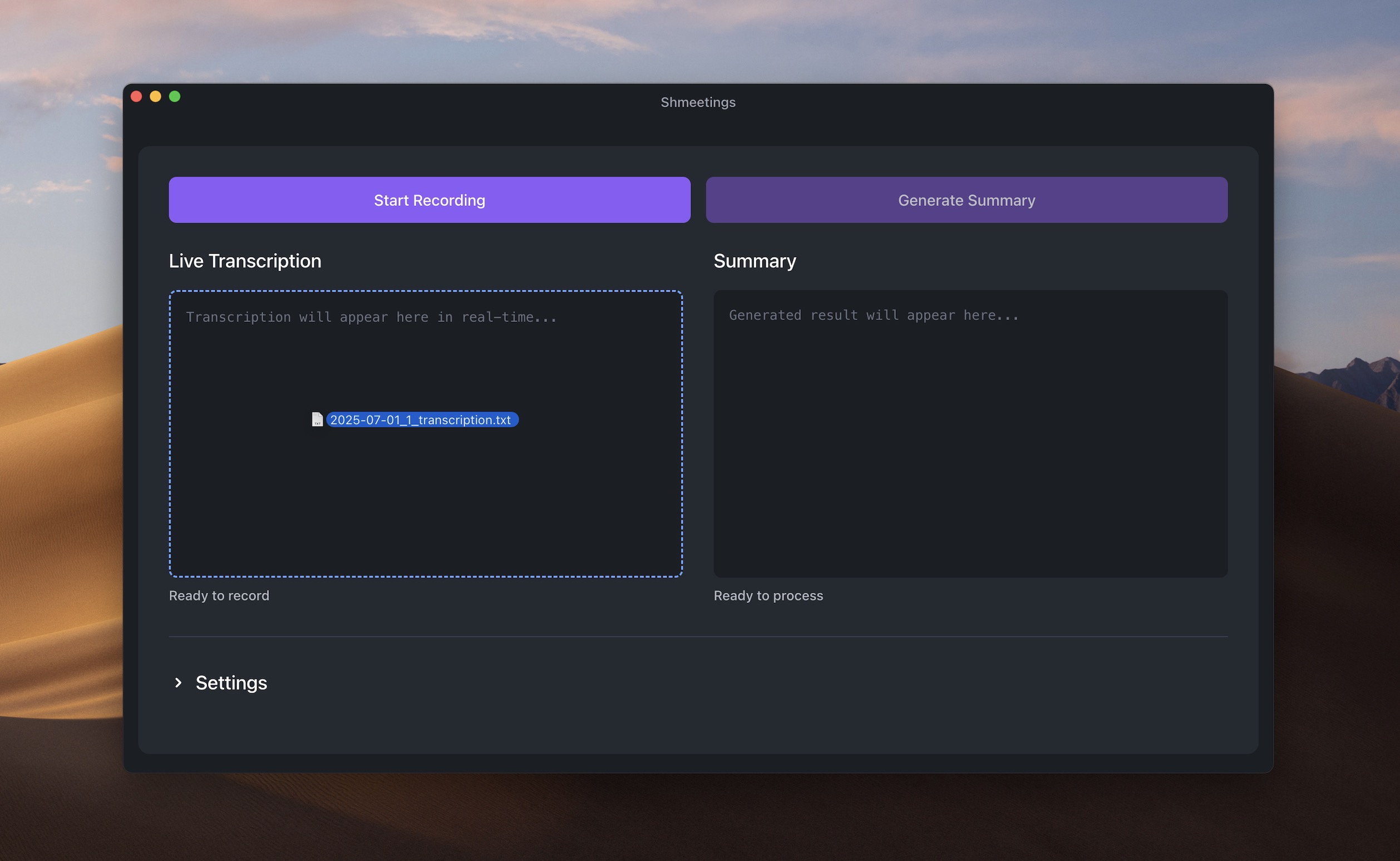
Drag and Drop Previous Meetings

You can re-process old meetings with updated summary instructions or context files, giving you better insights from past conversations.

How to Use:

  • Drag any .txt or .rtf text file into the Live Transcription window.
  • The transcription will load automatically.
  • Click "Generate Summary" to create a new summary.
  • Re-generate summaries as many times as needed.
Drag and drop meeting transcription to regenerate summary

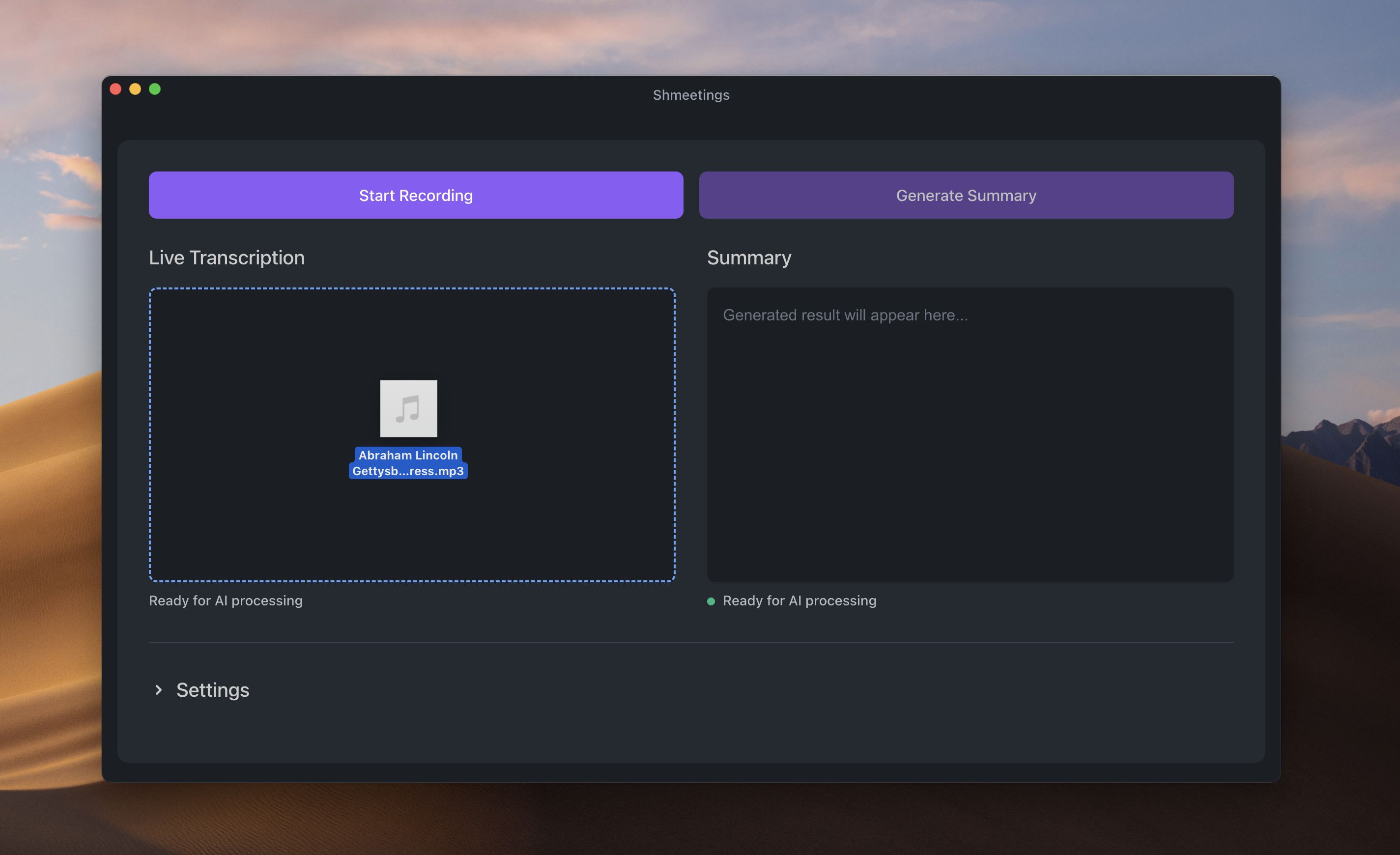
Transcribe Audio Files

Drag and drop audio files to transcribe and summarize them

Drag and Drop Any Audio File

You can now transcribe any audio recording simply by dragging it into Shmeetings.

How to Use:

  • Drag any .mp3, .wav, .aac, or .m4a file into the Live Transcription window.
  • The transcription will process automatically.
  • Click "Generate Summary" to create a new summary.

Advanced Settings

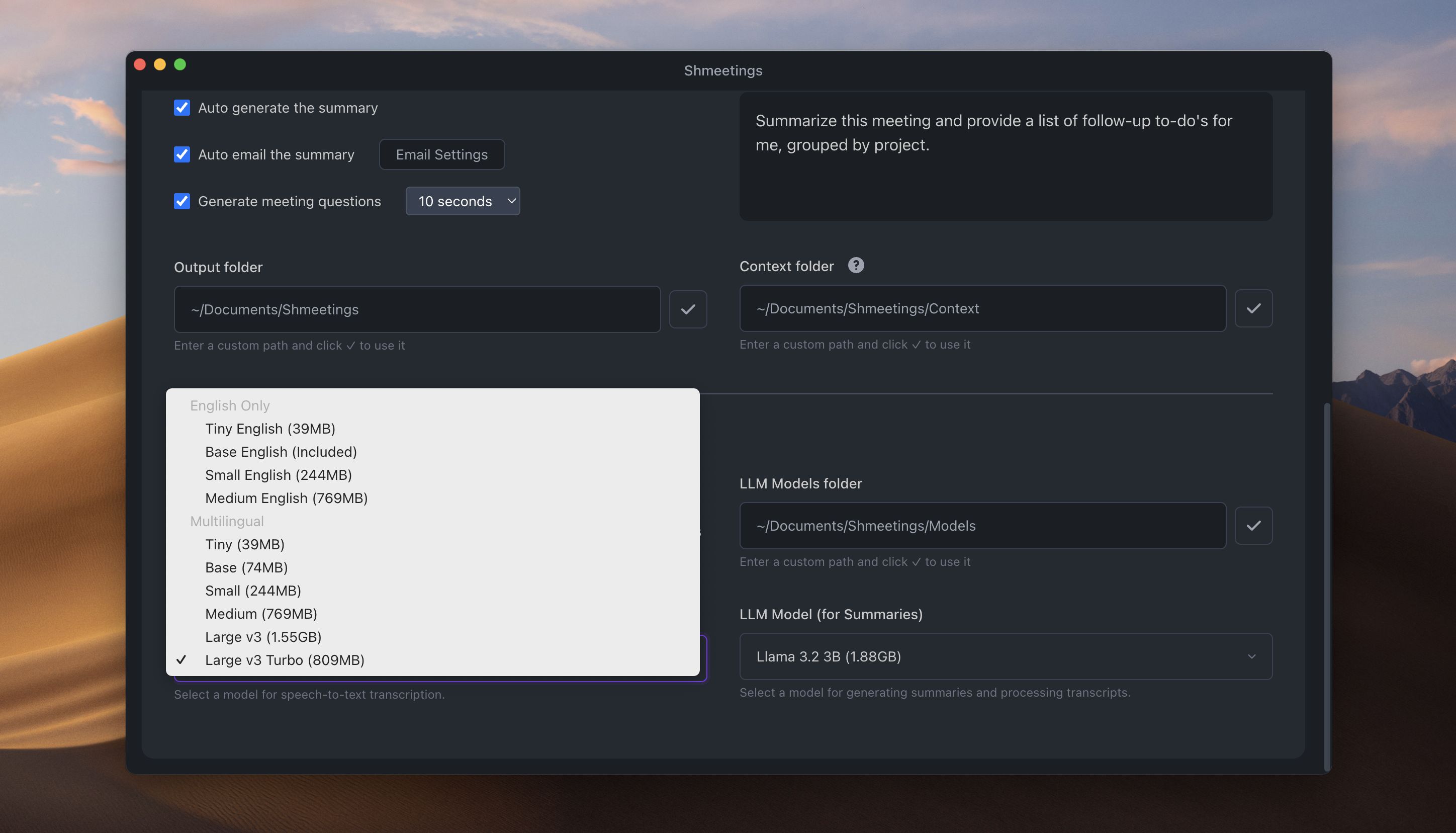
Use Other Whisper Models for Transcription

You can download and use other Whisper models if you want higher accuracy or multilingual support.

  • Shmeetings comes loaded with the Whisper Base English model.
  • You can select from other Whisper models and Shmeetings will automatically download them for you.
  • Select the Whisper Model dropdown in Advanced Settings to see all the options.
Use any Whisper model for transcription

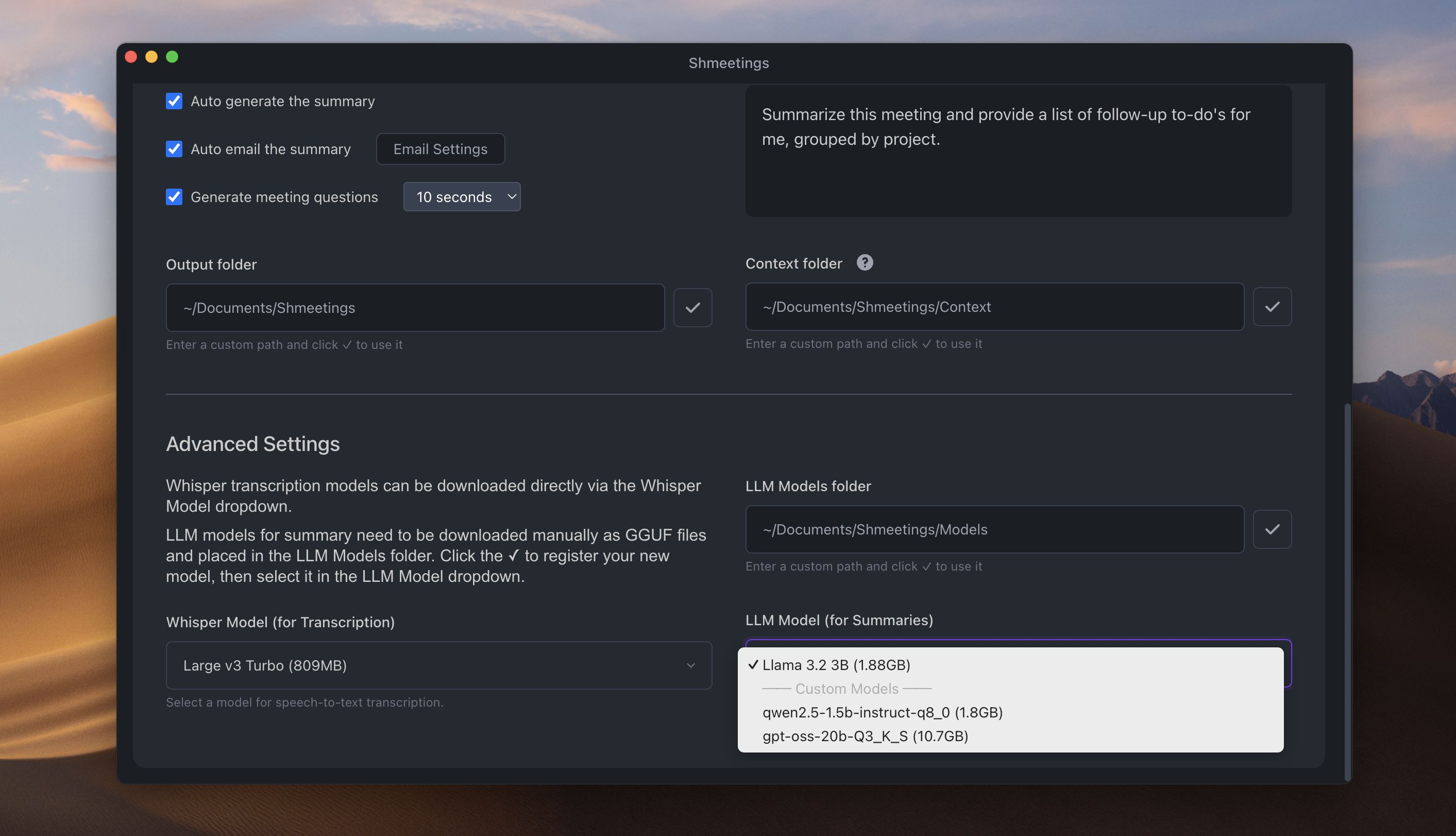
Use Any GGUF LLM Model for AI Summaries

Shmeetings defaults to the Llama 3.2 model for AI summaries and generated questions, but you can use any GGUF model.

  • Download a GGUF model from Huggingface and move it to the default Models folder.
  • You can change the folder where you store your LLM models.
  • Press the checkmark to update the list of available LLM models, then use the dropdown to select your model.
  • Shmeetings ensures the model's context window doesn't overload your system memory, but please note every GGUF model works differently and the results are unpredictable.
Load any GGUF AI LLM model for summaries

Software Requirements

Currently Supported

MacOS (Apple Silicon)

Requires macOS 11.0 or later on Apple Silicon Macs.

Coming Soon

Windows

Windows support is in development.

Hardware Requirements

Recommended Mac Specifications

Minimum Requirements:

  • • Apple Silicon Mac (M1 or newer)
  • • 8GB RAM
  • • 3GB free storage space

For Best Performance:

  • • M2 or M3 chip
  • • 16GB RAM or more

Performance Note: Processing time depends on your hardware. An M1 Macbook Air with 8gb ram can take 4-5 minutes to summarize an hour-long meeting, while a Mac Studio with 64gb ram can do it in 30 seconds.

Uninstall

Removing Shmeetings and Llama

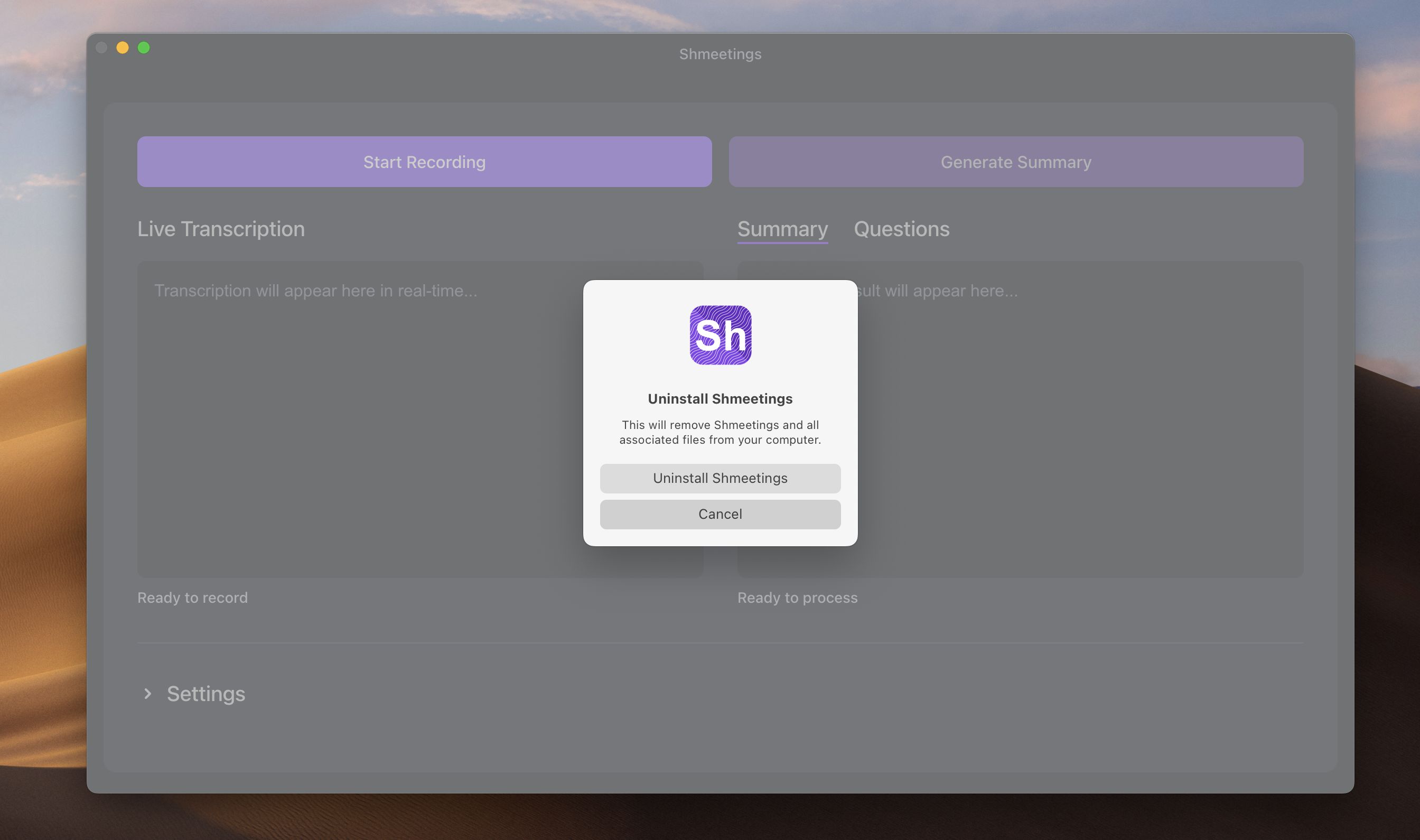
If you need to uninstall Shmeetings, follow these simple steps:

  1. 1. While Shmeetings is open, go to Help > Uninstall Shmeetings.
  2. 2. Select Uninstall Shmeetings.
Uninstall Shmeetings menu options

Need More Help?

If you have questions not covered in this guide, we're here to help!

Contact Support