
Automatic Meeting Notes for Claude, ChatGPT and Other AI Agents
Most people don't want one more app to check after every meeting. They want the transcript and the summary to go where their work already happens: a task list, a CRM, a project doc, or an AI agent that can act on them.
Shmeetings makes that simple. It saves every meeting as plain text files in a folder on your computer, and anything that can read a file can use them.
Every meeting becomes two text files
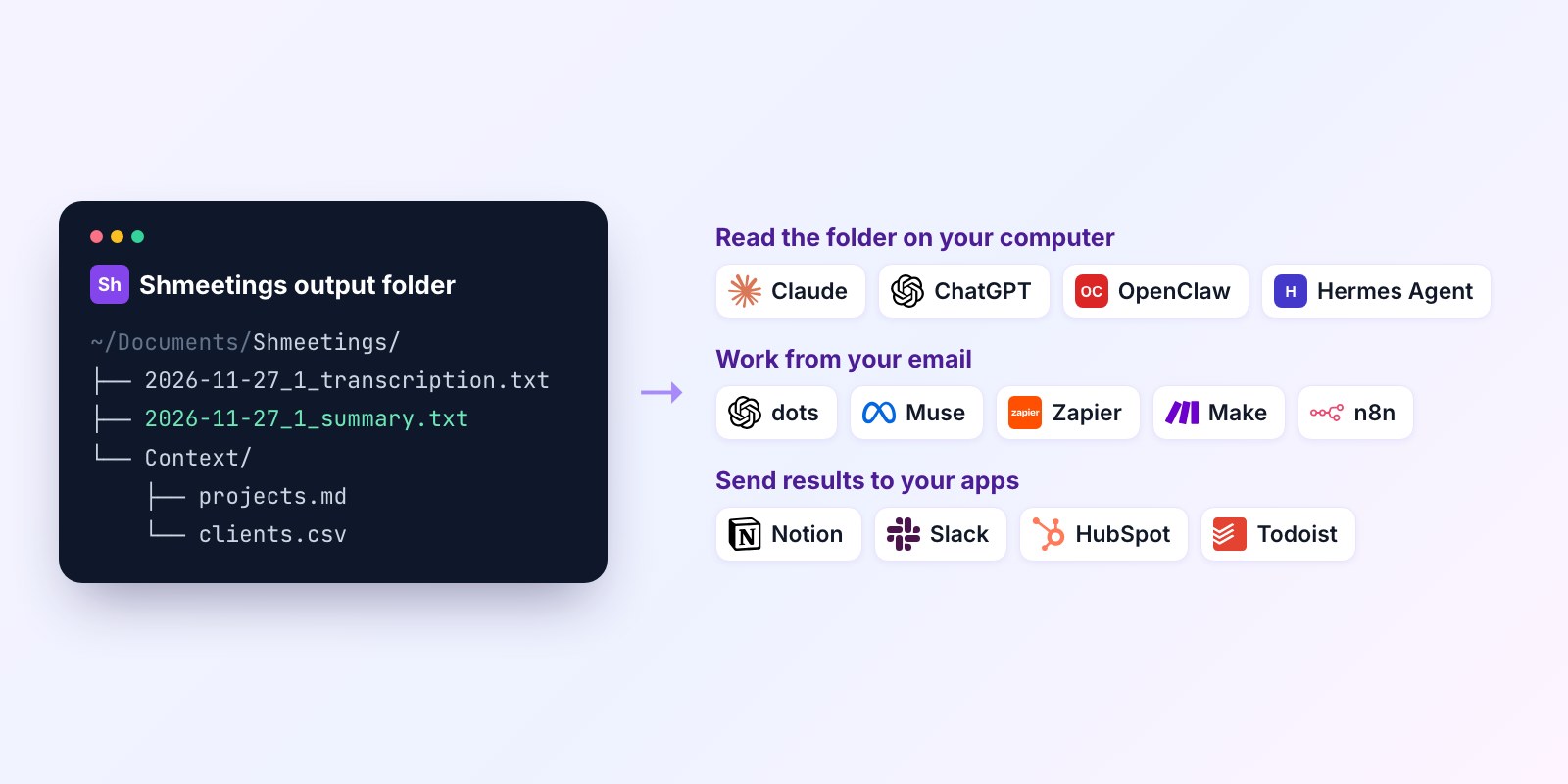
You pick the output folder in Settings. After each meeting, it holds a transcript and a summary, named by date and meeting number:
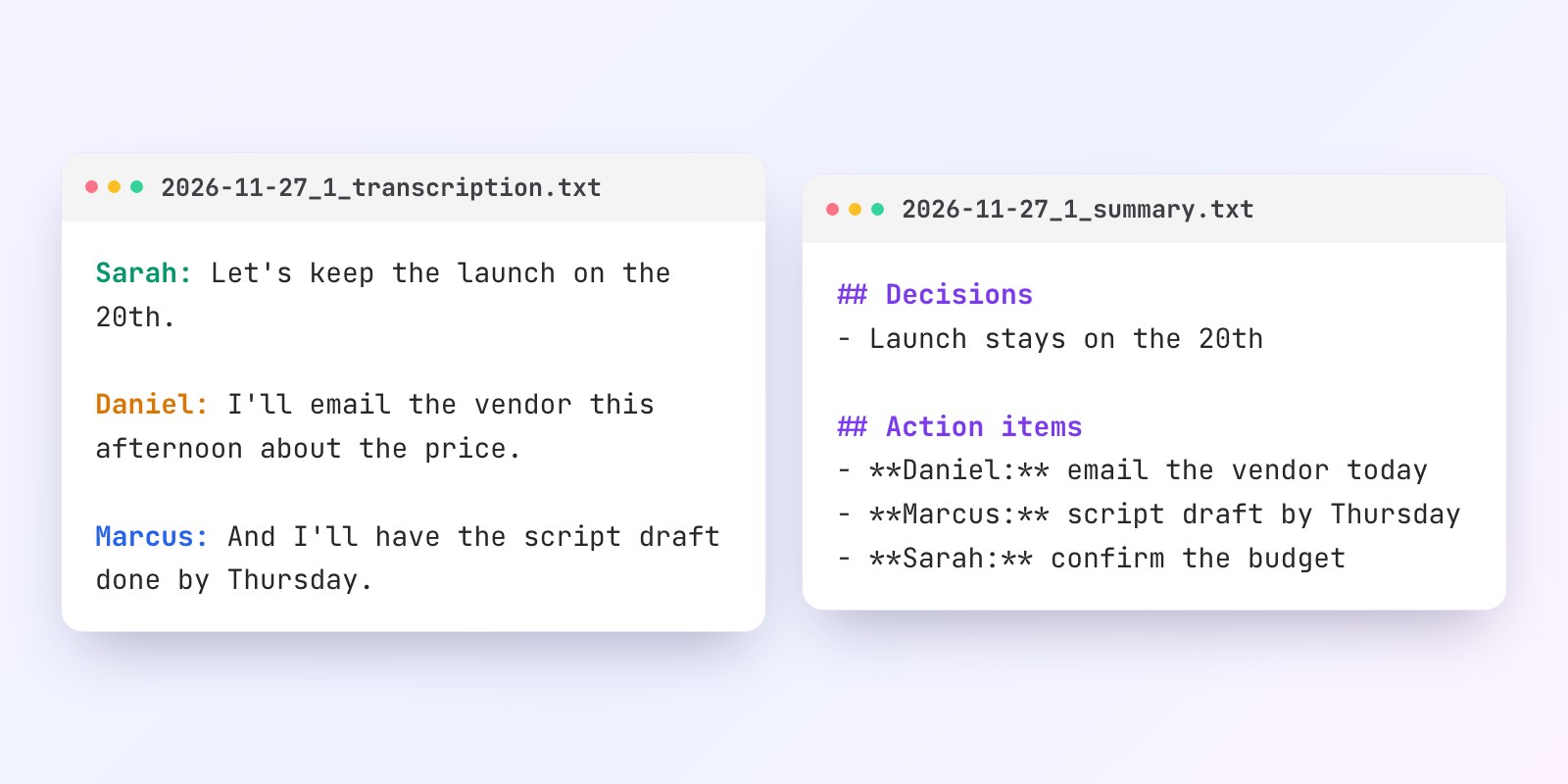
The transcript shows who said what. The summary is markdown, which AI models read easily. There's no database and no special format, and the files are yours.
It runs on its own
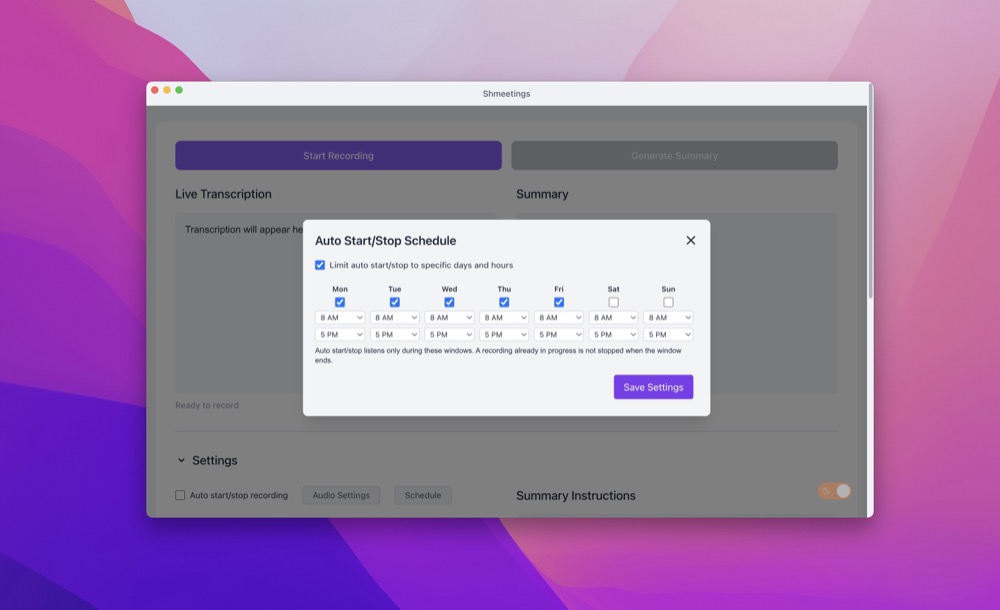
Turn on auto start/stop and Auto generate the summary. Shmeetings starts recording when people talk, stops after a silence, and writes the summary. Add a weekly schedule to limit it to work hours.
Three ways to connect it
1. An AI agent reads the folder
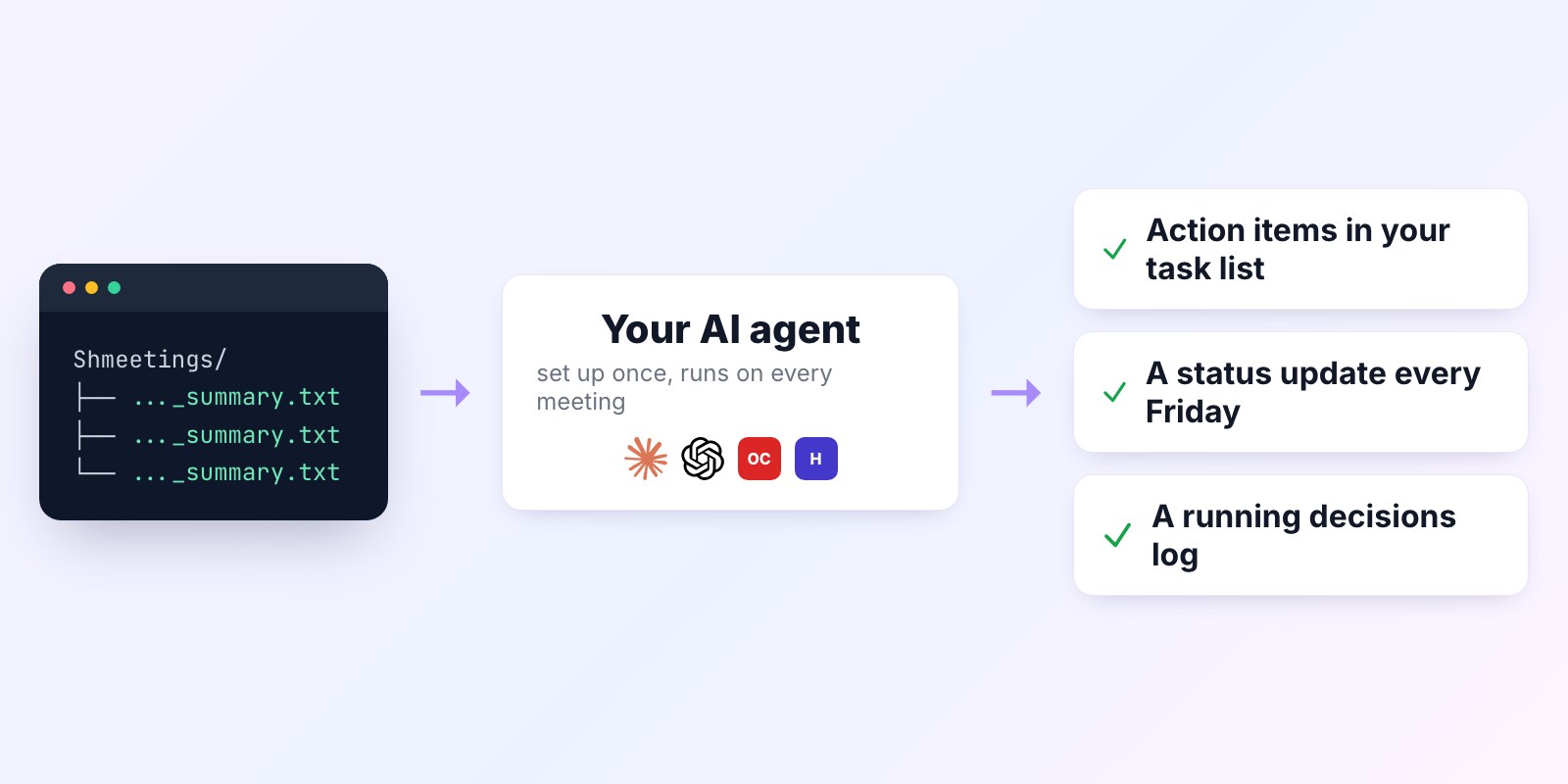
Agents that run on your computer can read the folder: Claude Code, the Claude desktop app with a folder connected, the ChatGPT desktop app, Cursor, OpenClaw and Hermes Agent. Set up the job once, and it covers every meeting:
- "When a new meeting summary appears in my Shmeetings folder, add my action items to my task list."
- "Every Friday, turn the week's summaries into a status update for my manager."
- "Add every decision from my meetings to decisions.md, with the date."
2. A workflow starts when a file appears
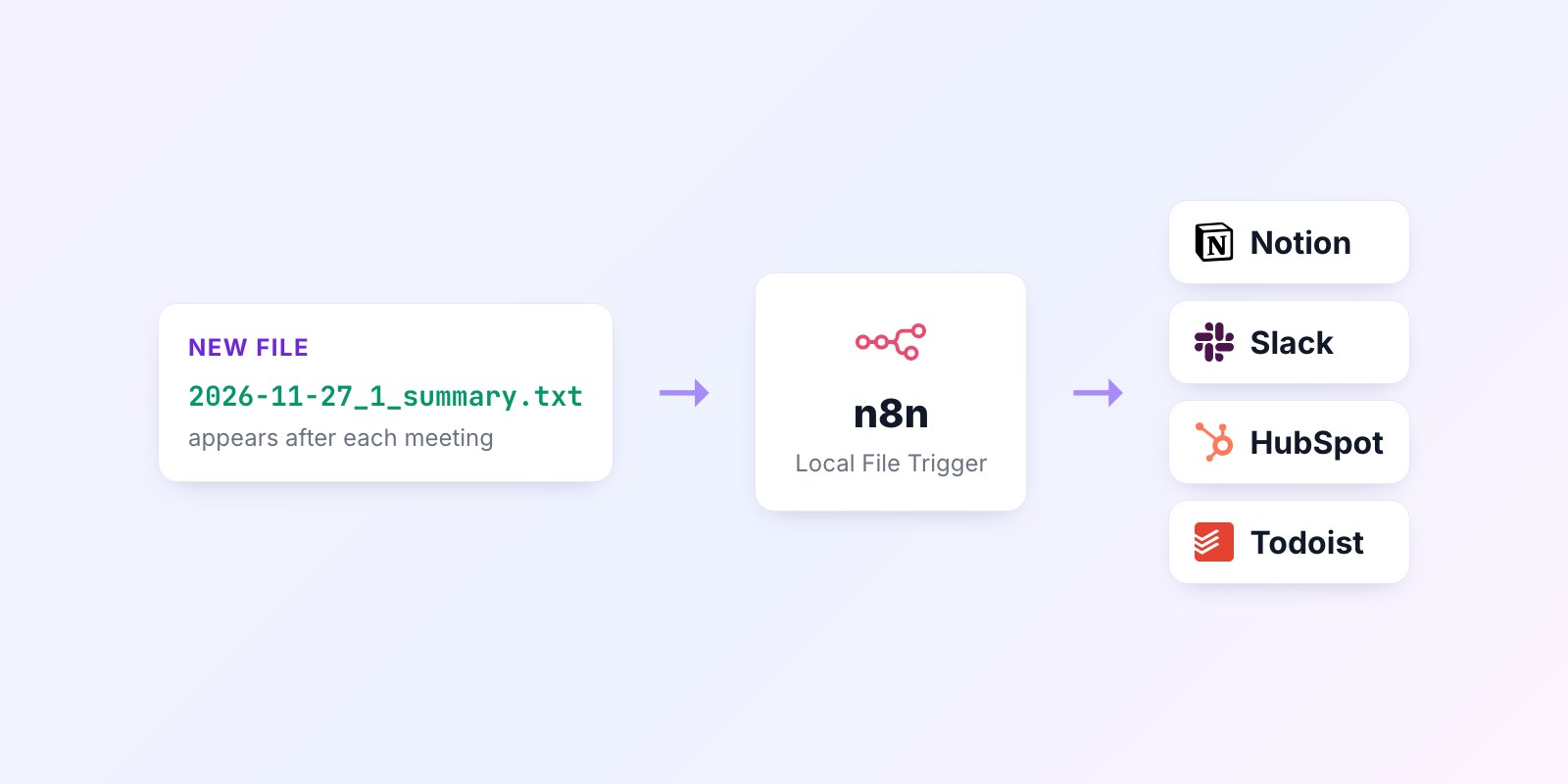
Self-hosted n8n has a Local File Trigger that starts a workflow when a new file lands in a folder. Point it at the Shmeetings folder and watch for _summary.txt files, and each summary can go to Notion, Slack, HubSpot or Todoist. The trigger isn't on n8n Cloud, and you turn it on first in n8n 2.0 and later.
3. The summary arrives by email
Auto email sends the summary through your own email account, with the transcript attached and a subject line you choose. Send it to a Zapier or Make inbox to start a workflow there. Cloud agents that work from your inbox, like OpenAI's dots or Meta's Muse, can pick it up too.
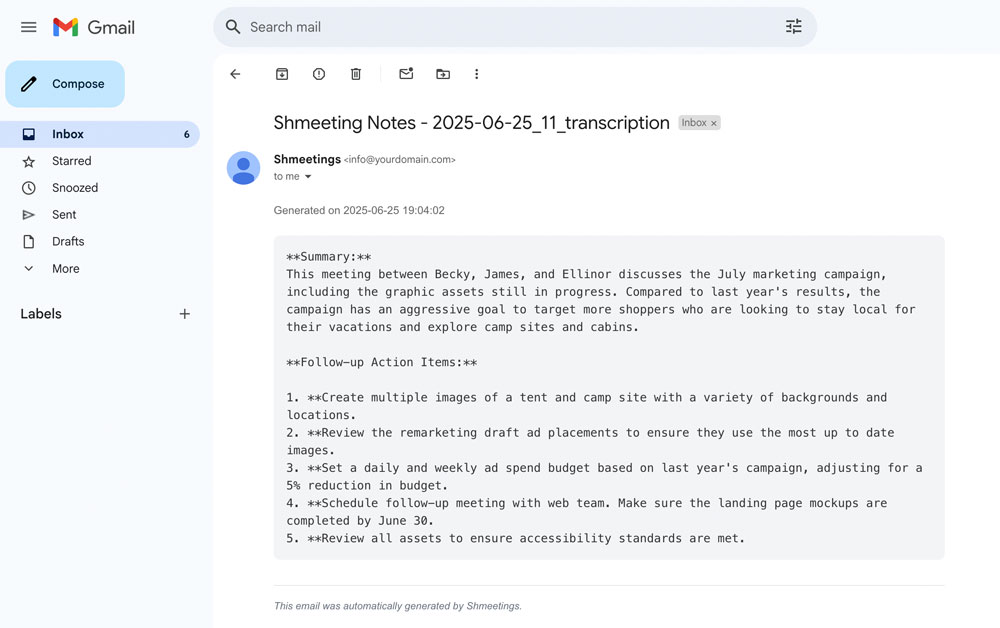
Email sends the summary off your computer. The folder routes keep it on your computer, especially with an agent that uses a local model.
Let your agent personalize your summaries
Shmeetings also reads a context folder when it writes each summary. Your agent can fill it with notes about your projects, clients, team and the terms you use. Then every summary spells names right and knows what your work is about.
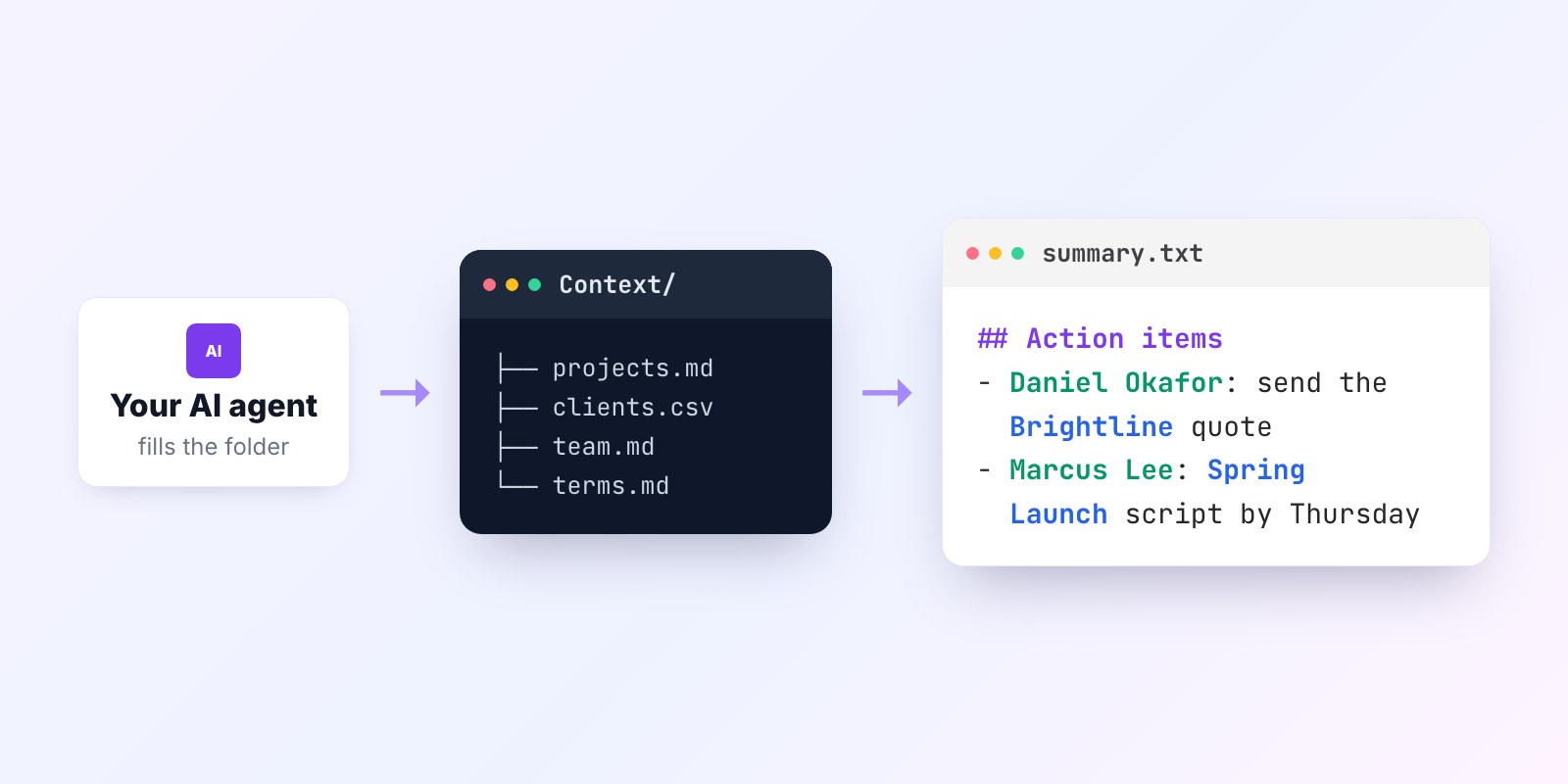
It reads .txt, .md, .csv, .json, .yaml, .html and .rtf files. Use Summary Instructions to set the format of every summary.
How cloud note takers do it
Cloud tools let AI reach your notes through their servers, often only on some plans. From their pricing and docs pages in November 2026:
| Tool | How AI reaches your notes |
|---|---|
| Granola | MCP server. Free plan: your notes from the last 30 days. Business: full history and transcripts. |
| Otter | MCP server from the Basic plan. API and webhooks on Enterprise only. |
| Fireflies | GraphQL API on every plan, with limits. Free plan: 500 requests a day. |
| Shmeetings | Plain files on your computer. Every meeting, no limits. |
Shmeetings has no API or MCP server of its own, because it doesn't need one. The folder and the email are the way in.
You can try Shmeetings in your browser before you buy. The setup guide covers the output folder, the context folder and auto email.
AI agents and Shmeetings: common questions
Can I connect Claude or ChatGPT to Shmeetings?
Yes, and there's nothing to set up in Shmeetings. Connect your Shmeetings folder to the Claude desktop app or the ChatGPT desktop app, and tell it once what to do with new meeting summaries. For example: "Check my Shmeetings folder for new summaries and add my action items to my task list." Set it to run on a schedule, and it handles every meeting from then on. Claude and ChatGPT run in the cloud, so the files they read go to Anthropic or OpenAI.
Can AI agents read Shmeetings transcripts and summaries?
Yes. Shmeetings saves each meeting as two plain .txt files in a folder you pick: one for the transcript and one for the summary. Any agent or script that can read files on your computer can use them.
Does Shmeetings have an API or an MCP server?
No. The files in your output folder and the optional auto email are the way in. There's nothing to connect and no request limit, because there's nothing to call.
Can I connect Shmeetings to Zapier, Make or n8n?
Yes. Send the auto email to an inbound email address from Zapier or Make, or use the Local File Trigger in self-hosted n8n to start a workflow when a new summary file appears.
Do my meetings leave my computer if I use an AI agent?
Shmeetings itself sends nothing. If your agent or automation runs on a cloud service, the files you give it go to that service. With a local agent and a local model, everything stays on your computer.
Shmeetings records your meetings and writes the transcript, speaker labels and summary on your own computer, with no cloud and no subscription. Mac and Windows, $39 once.