
Shmeetings 2.5: Offline Speaker Labels Show Who Said What
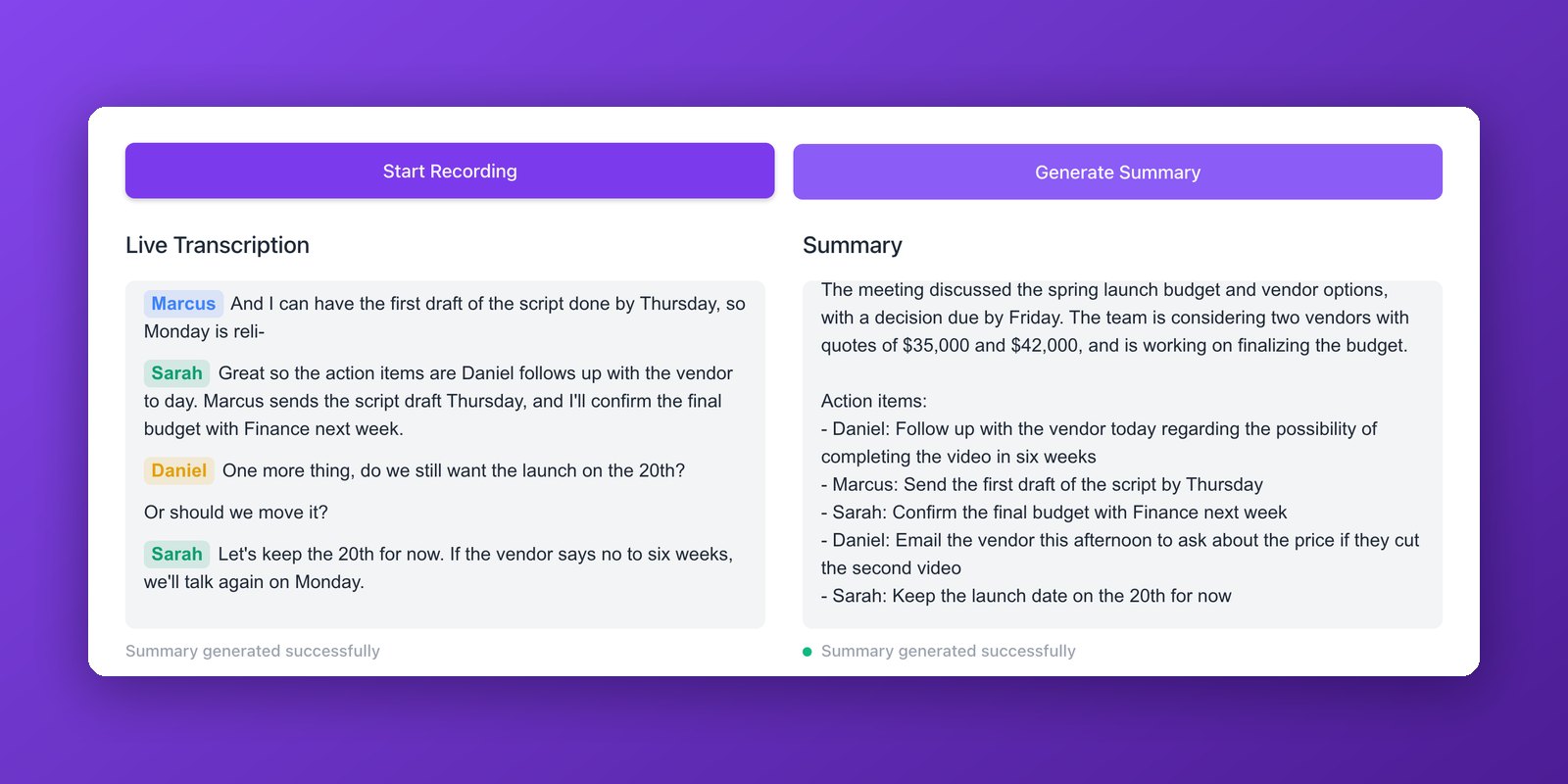
Shmeetings 2.5 is out, and this is a huge update. Transcripts now show who said what, while the meeting is still going. This is speaker diarization, the feature many of you asked for.
You can now also try it in your browser before you buy.
A one-minute test meeting in Shmeetings 2.5, sped up. Labels appear as people talk, and each one is renamed with a click.
Who said that?
Until now, a Shmeetings transcript was one long block of text. On a call with four people, you scroll back for the budget number and can't tell if your manager said it or the vendor did. Summaries had the same gap. "The team agreed to ship Friday" doesn't tell you who agreed.
How speaker labels work
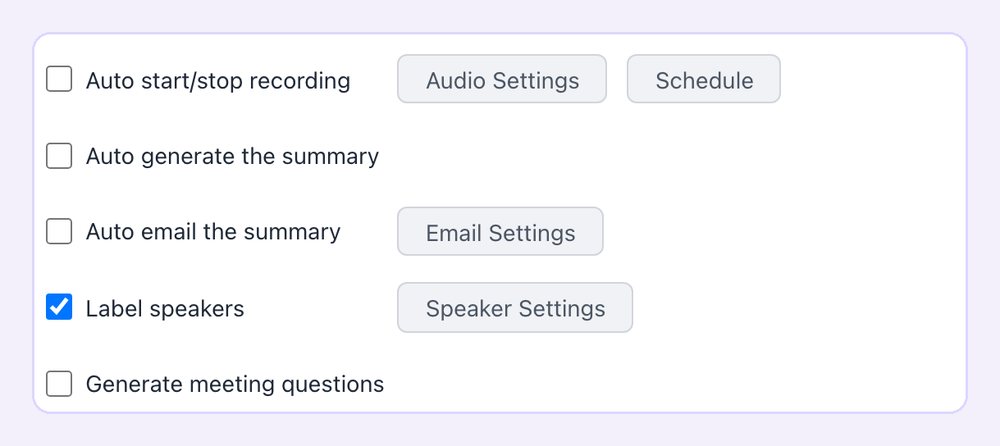
First, in Shmeetings 2.5, turn on Label speakers in Settings.
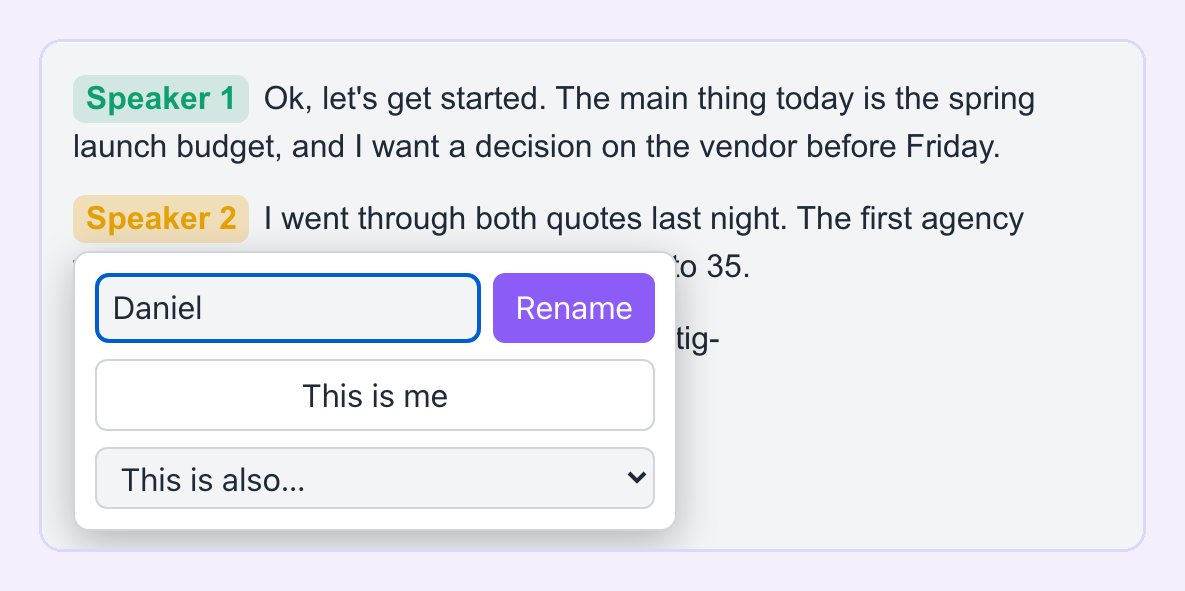
While you record, each new voice gets a label: Speaker 1, Speaker 2, and so on. Click a label, type a name and press Enter. Speaker 2 becomes Daniel everywhere in the transcript. You can do this during the meeting or after it.
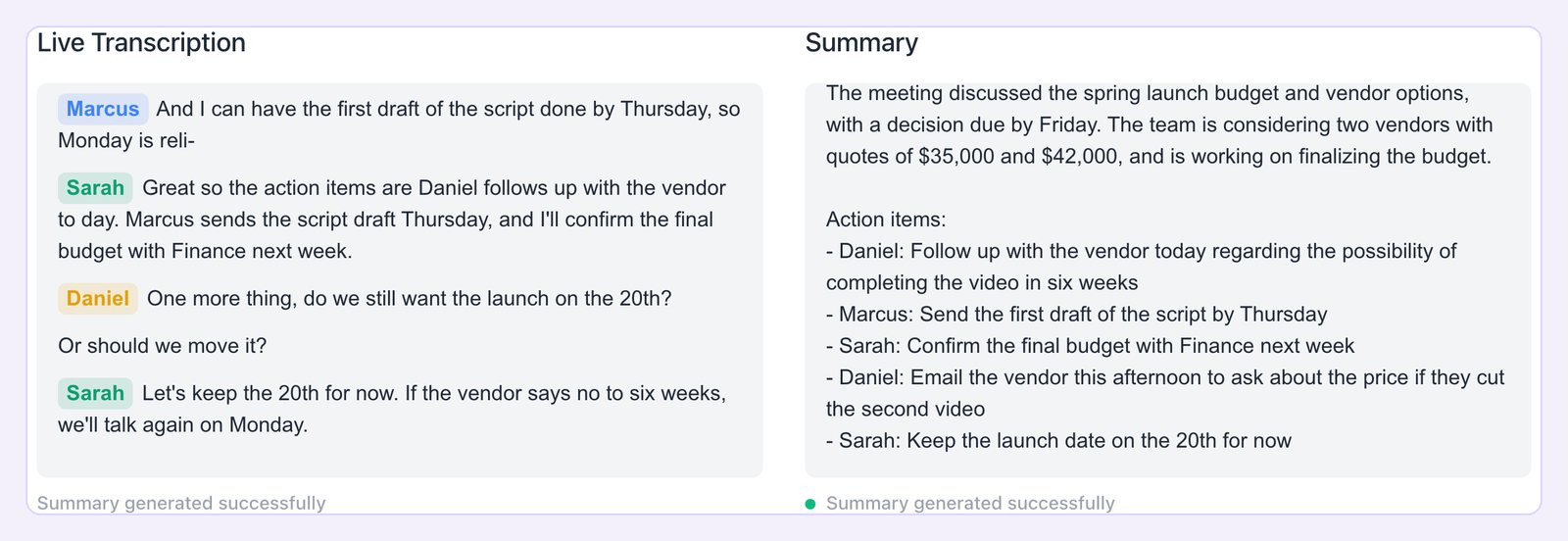
The summary, the suggested questions, the email and the saved .txt file all use the names. Action items come out as "Daniel: email the vendor today" in place of "someone should email the vendor."
It remembers voices
Name someone once, and Shmeetings recognizes them in your next meeting. In our test, the second meeting started with "Speaker 1" and changed to "Daniel" a few seconds in.
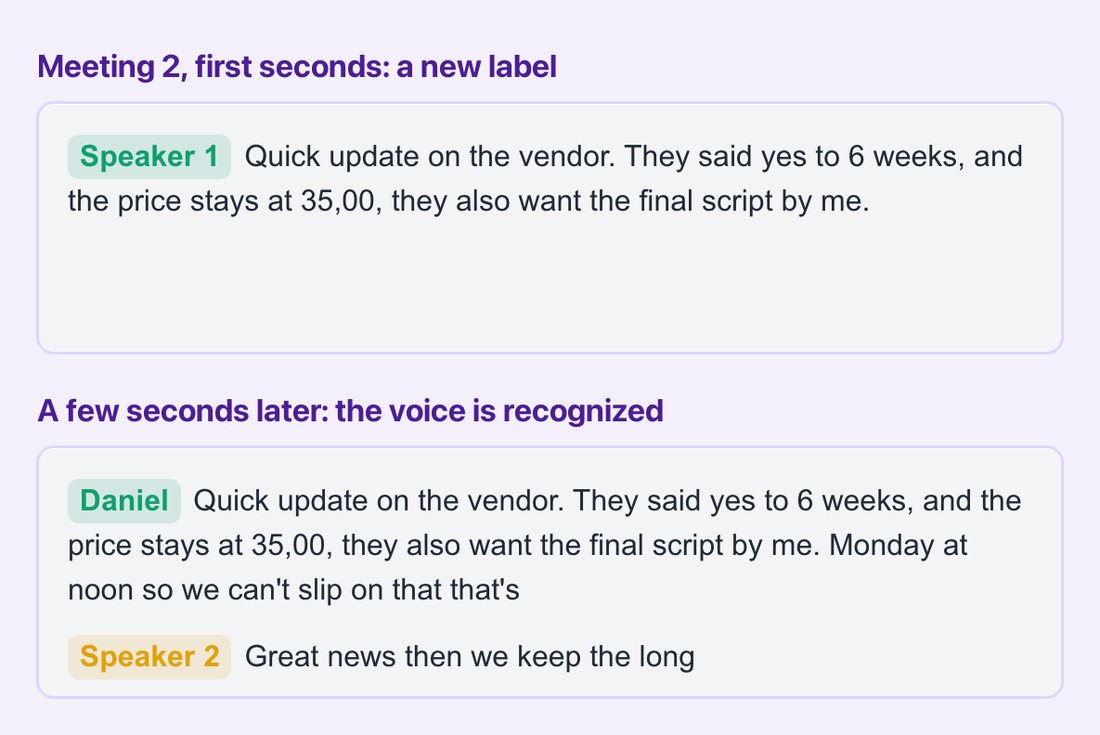
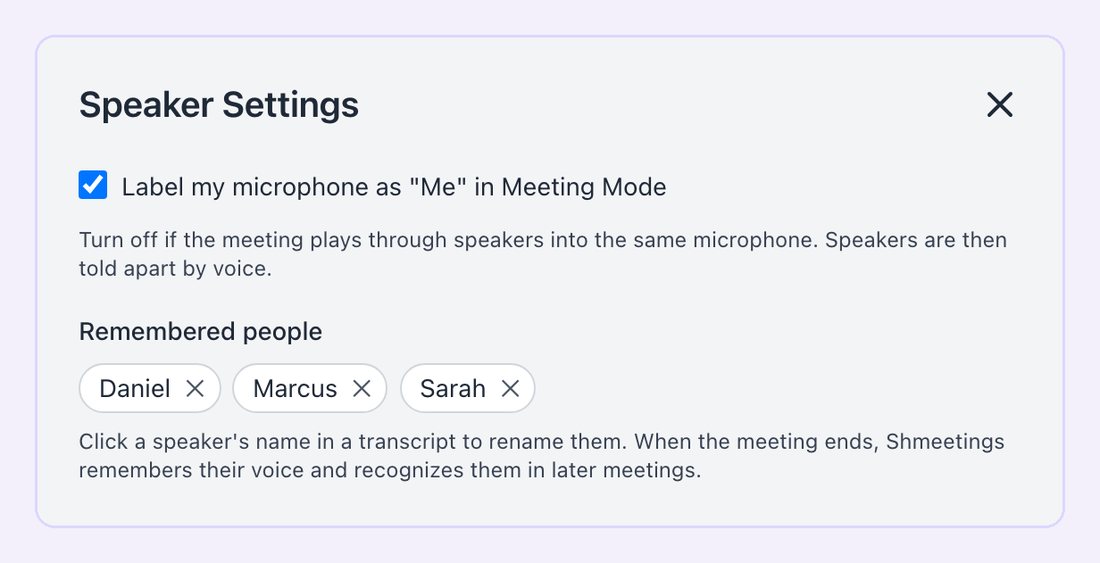
For this, the app saves a voiceprint, which is a list of numbers that describes a voice. It never saves audio, and the voiceprint stays on your computer. You can remove remembered people in Speaker Settings.
Meeting Mode, merges and other details
In Meeting Mode, your side of the call gets the label "Me." Shmeetings hears your mic and the call audio separately, so it knows which voice is yours.
If the call plays through your speakers, your mic picks up the other people too. In that case, go to Speaker Settings and turn off Label my microphone as "Me" in Meeting Mode. Shmeetings then tells everyone apart by voice, and you can click your own label and choose This is me.
Sometimes one person gets two labels. Click the extra one and pick the right name under This is also…, and the two labels merge into one speaker.
You can also rename people after the meeting. Drag a saved transcript back into the app, rename the labels, and click Generate Summary for a new summary with the real names.
It isn't perfect. Two similar voices can get mixed up, and so can a big room with one mic far from everyone. Labels work best when each person is close to a mic.
Try it before you buy
The Shmeetings live demo runs the real Shmeetings 2.5 app on our server. You get 5 tries of up to 3 minutes each. Talk into your mic, or drop in an audio file. To test speaker labels on your own, play a podcast or a YouTube video on your computer (or have a real meeting with friends).
The demo isn't offline like the app. Your audio goes to our server, which keeps it in memory only, never on disk, and deletes it 30 minutes after your last change. Its speed and summary wording can also differ a little from the app, which runs everything on your computer.
We felt like hosting the Shmeetings demo on our server was a good way to let people try the app out before they buy, without needing to download or install anything. But keep in mind that the real app is completely local to your computer.
See it with your own voice first. The demo needs no download and no account.
Smaller fixes
- Fewer missed words. The app now cuts the audio at short pauses, not in 6 second chunks. This makes the transcript more accurate.
- Faster first words. Text shows up about 3 seconds sooner after you click Start. Until then, a "Listening" line and a mic level bar show that the app hears you.
- Nothing loads from the internet at start. The app "stylesheet" used to come from a public file server (cdn.jsdelivr.net), and the app window made a DNS call to Cloudflare. Neither of these technical aspects sent meeting data, but we wanted to make sure the app worked completely offline without any outside calls.
- Speaker Label model. Shmeetings now only needs the internet twice: once to download the initial LLM (Meta's Llama 3.2), and once to download a larger Whisper model, which is optional. The speaker model is included in the app, which makes the initial app size a little larger, but it makes the app more offline-friendly.
- Formatted summaries. The Summary pane now shows headings, bold, lists and tables in place of raw markdown like
**. The saved .txt file still uses markdown. - Other fixes. There are a few other small fixes that improves the app performance on slower computers.
That's Shmeetings 2.5. It's a free update for everyone who owns Shmeetings. Download it from your LemonSqueezy receipt page, install it over the old one, and turn on Label Speakers in Settings.
New to Shmeetings? It's $39 once, for Mac and Windows, with a 30-day money-back guarantee. The setup guide covers every setting.
Speaker labels: common questions
Can Shmeetings tell who is speaking in a meeting?
Yes. Since version 2.5, Shmeetings labels each voice during the meeting (Speaker 1, Speaker 2, and so on). Click a label to rename it, and the transcript, the summary and the saved .txt file use that name.
Does speaker labeling work offline?
Yes. The speaker model comes with the app and runs on your computer, like the transcription and summary models. Speaker labels need no internet connection.
Do I have to record voice samples to set up speaker labels?
No. Labels appear on their own. When you rename a speaker, Shmeetings saves a voiceprint at the end of the meeting and uses it to recognize that person in later meetings.
Does Shmeetings keep recordings of people's voices?
No. Shmeetings does not save meeting audio. For remembered people it keeps a voiceprint, which is a list of numbers that describes a voice. You can't play a voiceprint back as audio. It stays on your computer, and you can delete it in Speaker Settings.
Does it work with Zoom, Microsoft Teams and Google Meet calls?
Yes. No bot joins your call. In Meeting Mode, Shmeetings records your microphone and your computer's audio, labels your side as "Me" and labels the other people by voice.
Can I try Shmeetings before I buy it?
Yes. The Shmeetings live demo runs the real Shmeetings app in your browser. You get 5 tries of up to 3 minutes each, with no download and no account.
How much does Shmeetings cost?
$39 once, with no subscription. It runs on Mac (Apple Silicon) and Windows 10 or later, and comes with a 30-day money-back guarantee.