

How to Transcribe a Google Meet Meeting (And What Google Won't Tell You)
Google Meet has a built-in transcription feature. But it is not available to everyone, and Google does not make the requirements obvious. You need a paid Google Workspace plan (Business Standard or higher), your admin needs to enable transcription at the organization level, and then you need to manually start it each time. Free Gmail accounts and Workspace Business Starter plans do not include transcription at all.
If you are unsure whether you have access, the fastest way to check is to join a Google Meet call and look for the Activities panel on the right side. If "Transcripts" appears there, you are set. If not, either your plan does not support it or your admin has not turned it on.
How to Start Transcription in Google Meet
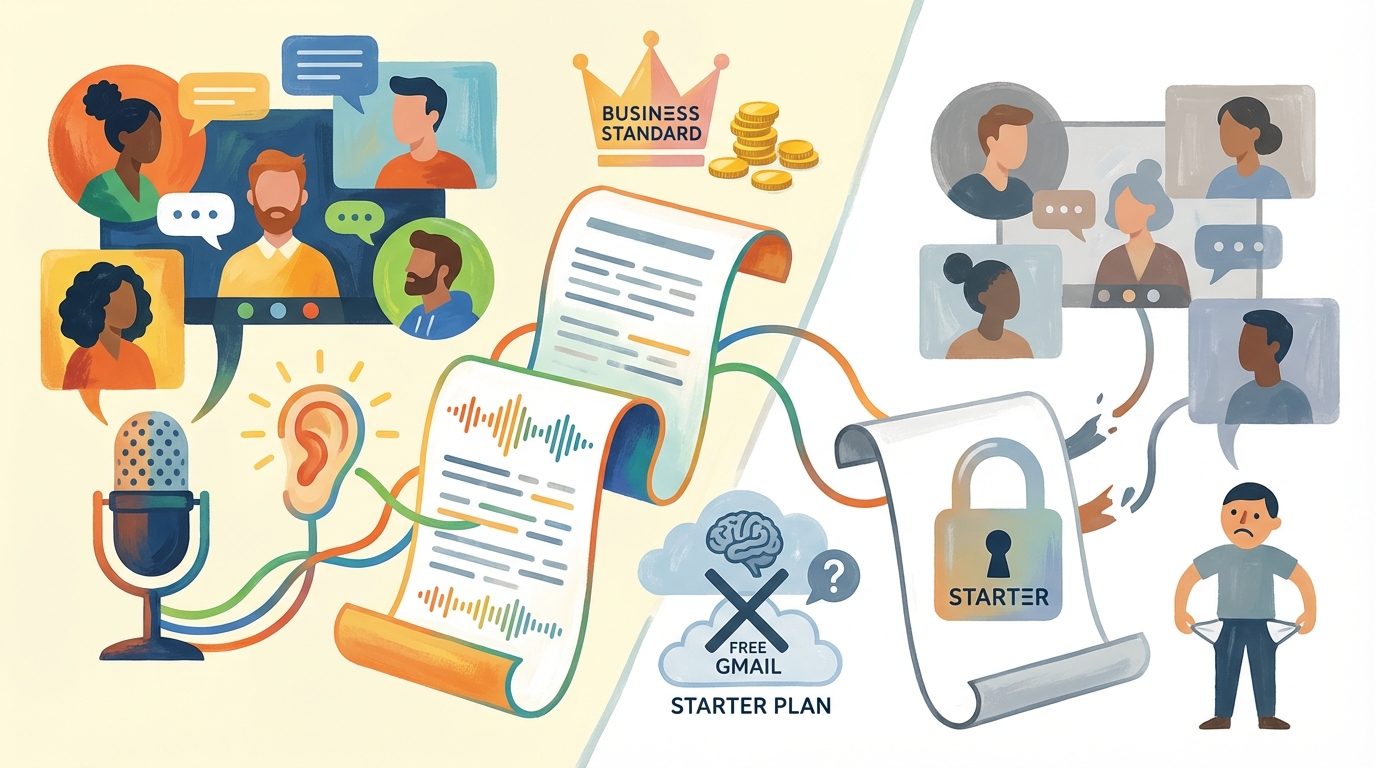
Once you have the right Workspace plan and your admin has enabled the feature, starting transcription takes four clicks:
- Join or initiate a Google Meet meeting
- Click the Activity Icon at the bottom of the right-hand toolbar
- Select "Transcripts"
- Click "Start transcription"
All participants will receive a notification when the transcription begins.
After the meeting concludes, Google saves the transcript as a Google Doc in the organizer's Google Drive under the Meet Recordings folder.
You may also choose to stop and restart transcription at any point during a meeting if you only wish to capture certain portions of the conversation.
Participants will see a transcript indicator in the meeting window the entire time. There is no way to transcribe secretly.
Where Google Meet Transcription Falls Short
The built-in transcription works, but it has real limitations that affect everyday use.
Accuracy and Language Limits
Accuracy depends on conditions. Background noise, accents, speakers talking simultaneously, and low quality microphones all hurt accuracy. Google does not publish accuracy numbers for Meet transcription. Third party testing shows it struggles with anything beyond clean, single speaker audio.
English-only for most plans. While Google Meet offers captioning in multiple languages, the full transcript feature is much more limited. If you have meetings with speakers of multiple languages, the transcripts will only contain the speech of those speaking English.
Privacy and Feature Gaps
No offline access during the meeting. Transcription runs on Google's servers. If your internet drops mid-meeting, the transcript gaps out. You cannot run it locally or use it without a connection.
Cloud storage only. Your meeting transcript lives in Google Drive. There is no option to keep it on your machine without manually downloading it after the fact. For teams handling sensitive conversations, this means your meeting content sits on Google's servers. This is a real concern for privacy-conscious organizations.
No summary or action items. The transcript is a raw wall of text. Google does not generate summaries, extract action items, or organize the content in any way. You get a chronological log of who said what, and that is it.
How to Get Better Meeting Transcriptions
If the built-in option does not cover what you need, you have a few paths.
Third-party cloud transcription tools such as Otter.ai and Fireflies.ai provide better accuracy, automatic summarization, and integration with project management tools. The tradeoff is cost (monthly subscriptions) and the same cloud privacy problem. Your meeting audio still goes to another company's servers. See how these compare in our Otter.ai comparison and Fireflies comparison.
Offline transcription software such as Shmeetings operates independently of Google Meet and does not require a Google Workspace plan. It does not transmit audio to the cloud. Instead, it uses local AI models to perform transcription, provide a summary, and identify action items from any meeting. It works with Google Meet, Zoom, Teams, or any platform since it captures system audio directly. Check our setup guide to see how it works.
Manual transcription through services such as Rev is still an option for very short, high-stakes meetings requiring perfect accuracy. However, human transcription typically involves a delay of hours and costs several dollars per minute.
The right choice depends on your priorities. If privacy matters, offline tools avoid the cloud problem entirely. If you need advanced features like AI summaries and speaker analytics, cloud tools offer more. And if you just need basic transcripts and already have the right Workspace plan, Google Meet's built-in option works fine for straightforward meetings.
Recording vs. Transcribing in Google Meet
People often confuse recording and transcription in Google Meet. They are separate features with different outputs.
| Recording | Transcription | |
|---|---|---|
| Output | Video file (MP4) | Text document (Google Doc) |
| Includes | Audio, video, screen shares | Words attributed to speakers with timestamps |
| Stored in | Google Drive | Google Drive |
| Auto-starts with the other | No | No |
You can use both at the same time. If you want both a video and a text record, you need to enable each one separately.
One practical tip: if you record a meeting but forget to enable transcription, you can download the recording and transcribe the audio after the fact. Drag and drop the audio file into a local transcription tool and get your text that way. This also works for meetings on other platforms where you have a recording but no transcript.
Frequently Asked Questions
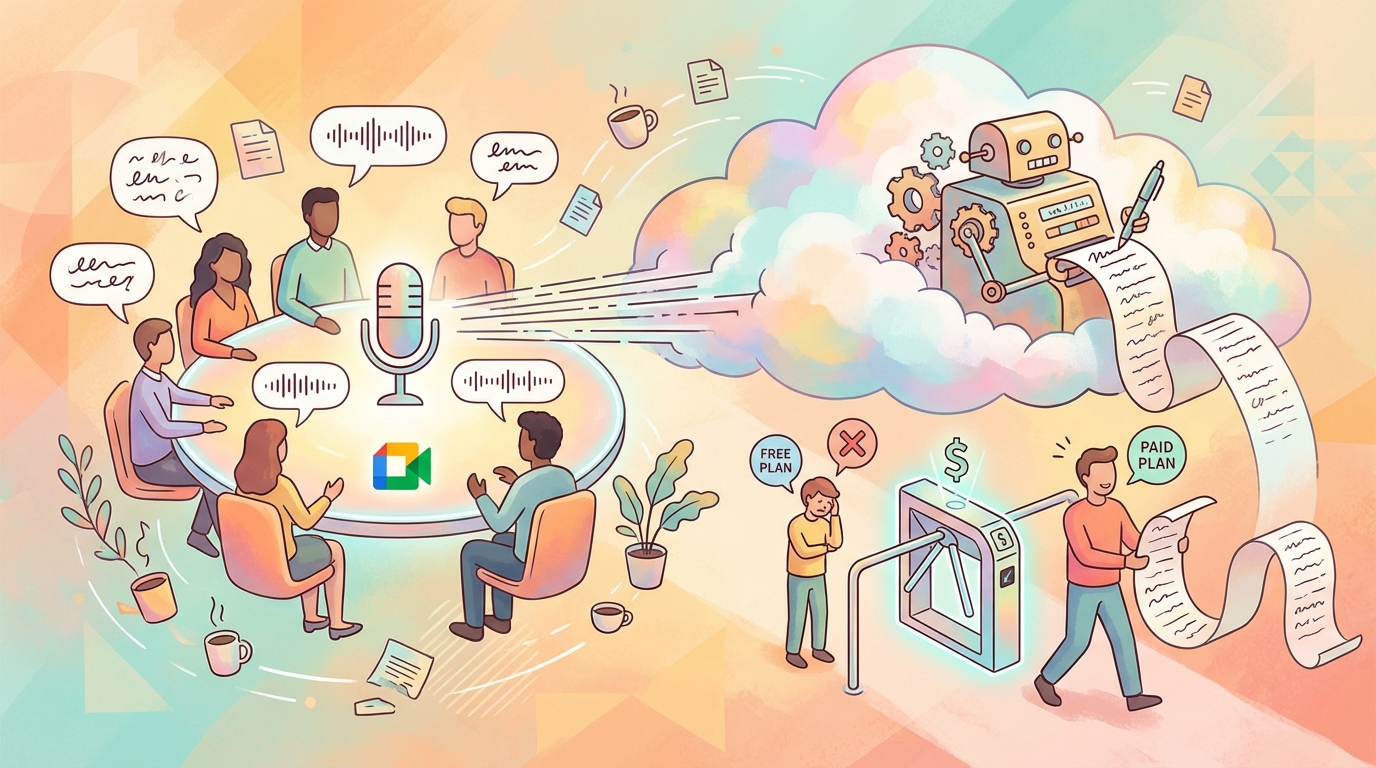
Is Google Meet transcription free? No. To use Google Meet transcription, you must have a paid Google Workspace plan (Business Standard or higher). Users of free Gmail and Workspace Business Starter plans will not have access to transcription.
Can I transcribe a Google Meet meeting without recording it? Yes. Transcription and recording are independent features. You can use one without the other.
Where are Google Meet transcripts stored? Google Meet transcripts are stored as Google Docs in the Google Drive of the meeting organizer, in the Meet Recordings folder. After the meeting, participants will receive a link to the transcript.
Can I transcribe a Google Meet meeting in languages other than English? Google Meet supports captions in multiple languages, but full transcript support varies by language and Workspace plan. English has the broadest coverage.
Is there a way to transcribe Google Meet meetings offline? No. Because transcription for Google Meet occurs on Google's servers, it requires a live internet connection. For offline transcription, you need a local tool such as Shmeetings that processes audio on your computer without sending data to the cloud.
Can other participants see that the meeting is being transcribed? Yes. Google Meet shows a notification to all participants when transcription starts. There is no way to transcribe a meeting without others knowing.